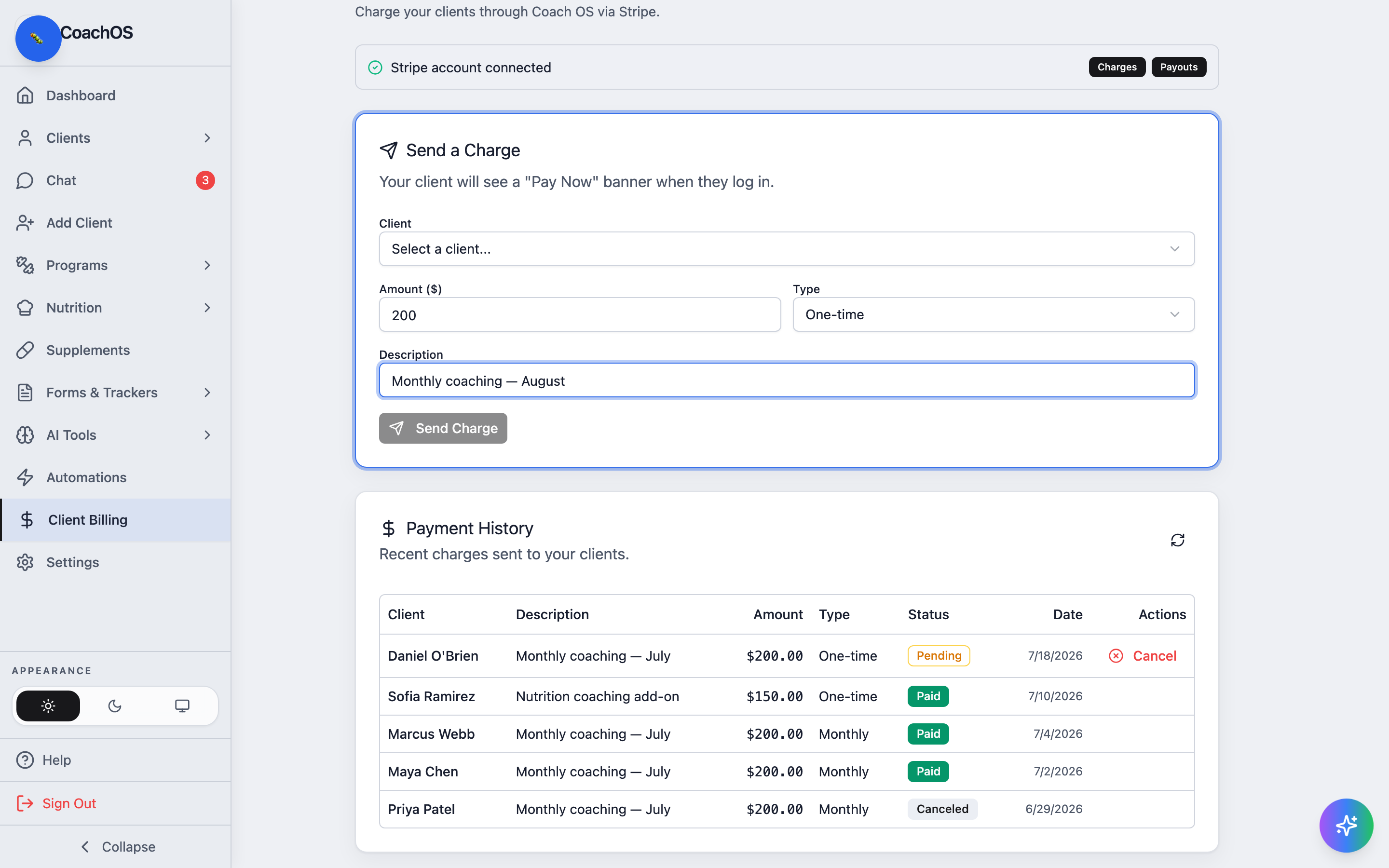
Client Billing charges your clients through Stripe and pays out to your bank account. It's available on Pro and Unlimited plans.
1. Connect Stripe
Open Client Billing in the sidebar and click Connect Stripe. Stripe's hosted setup takes about five minutes (identity + bank details); when you finish you land back in CoachOS with a green Stripe account connected banner showing Charges and Payouts enabled.
2. Send a charge
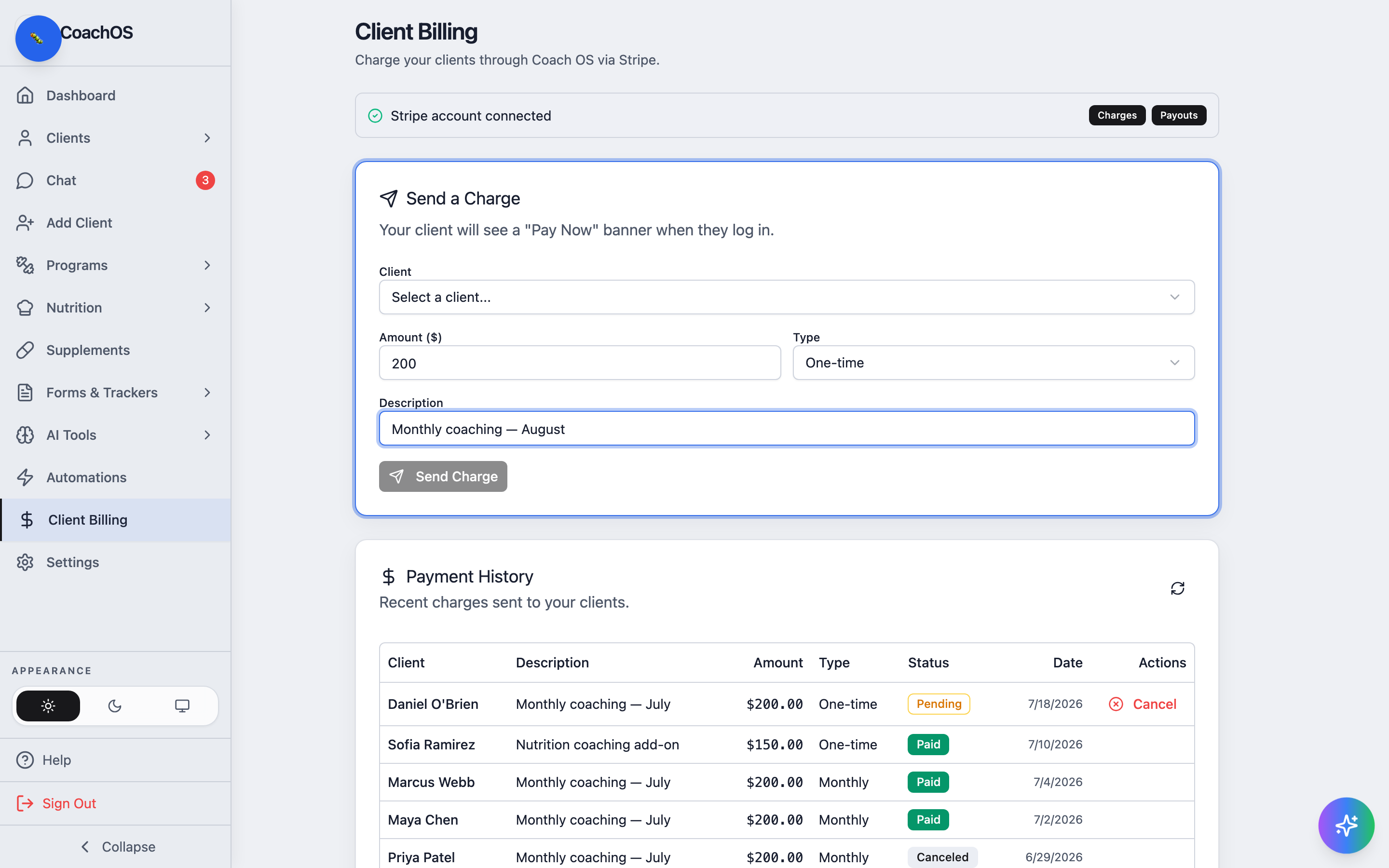
Under Send a Charge, pick the Client, enter the Amount ($) and a Description, and choose the Type — One-time or Monthly for a recurring subscription. Click Send Charge. Your client sees a "Pay Now" banner the next time they open their app and pays through Stripe checkout.
3. Track payments
Payment History lists every charge with its status — Pending until the client pays, then Paid; recurring charges show as Monthly. Use Cancel on a pending or recurring charge to stop it.