
When a client connects a wearable (Oura today), their recovery data flows into the Health tab on their profile — the same signals that power your dashboard's sleep and HRV alerts.
1. Open the Health tab
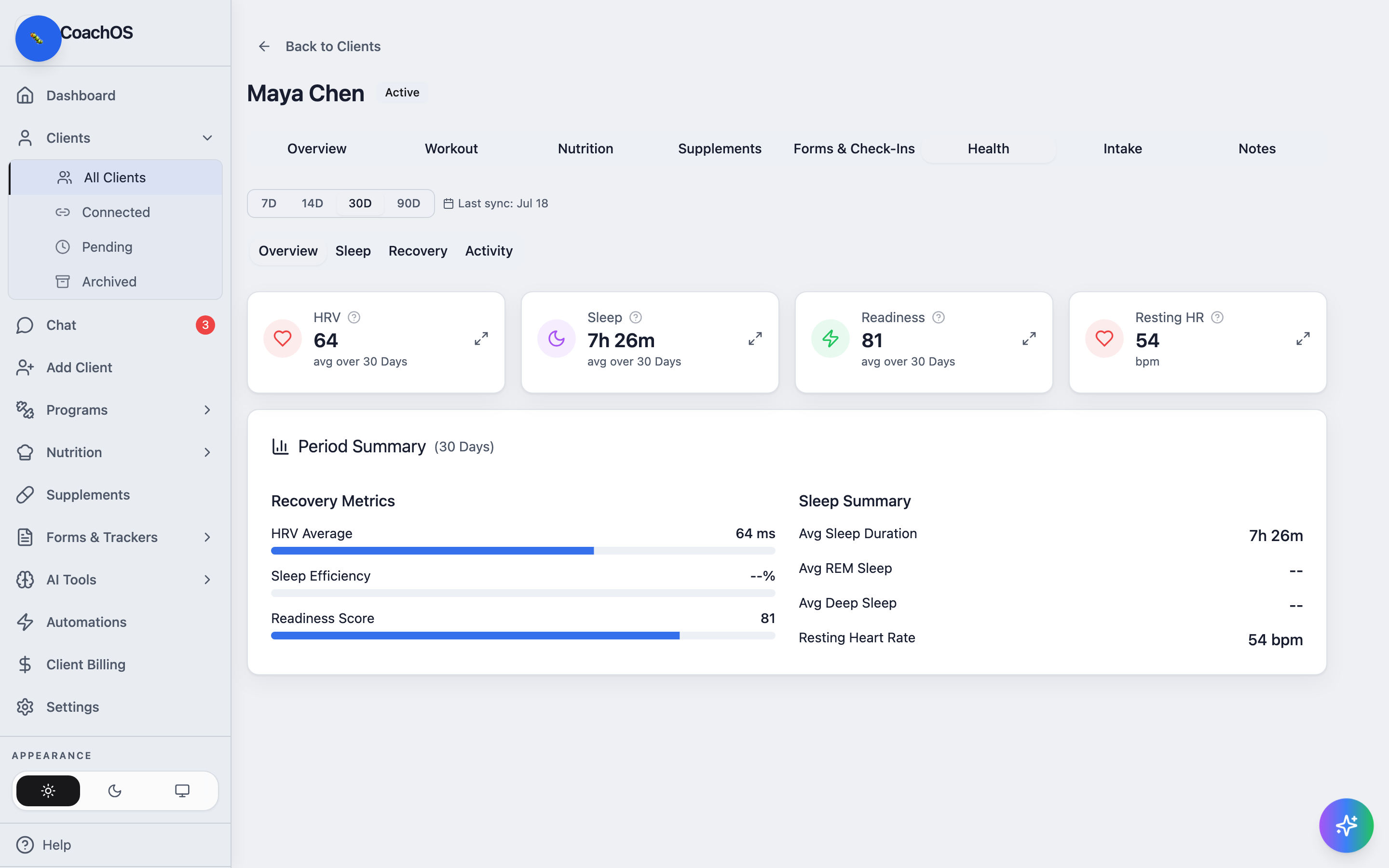
Open the client from your roster and click Health. The tiles show average HRV, Sleep, Readiness, and Resting HR for the selected period, with a Period Summary underneath and the last sync date at the top.
2. Pick a range
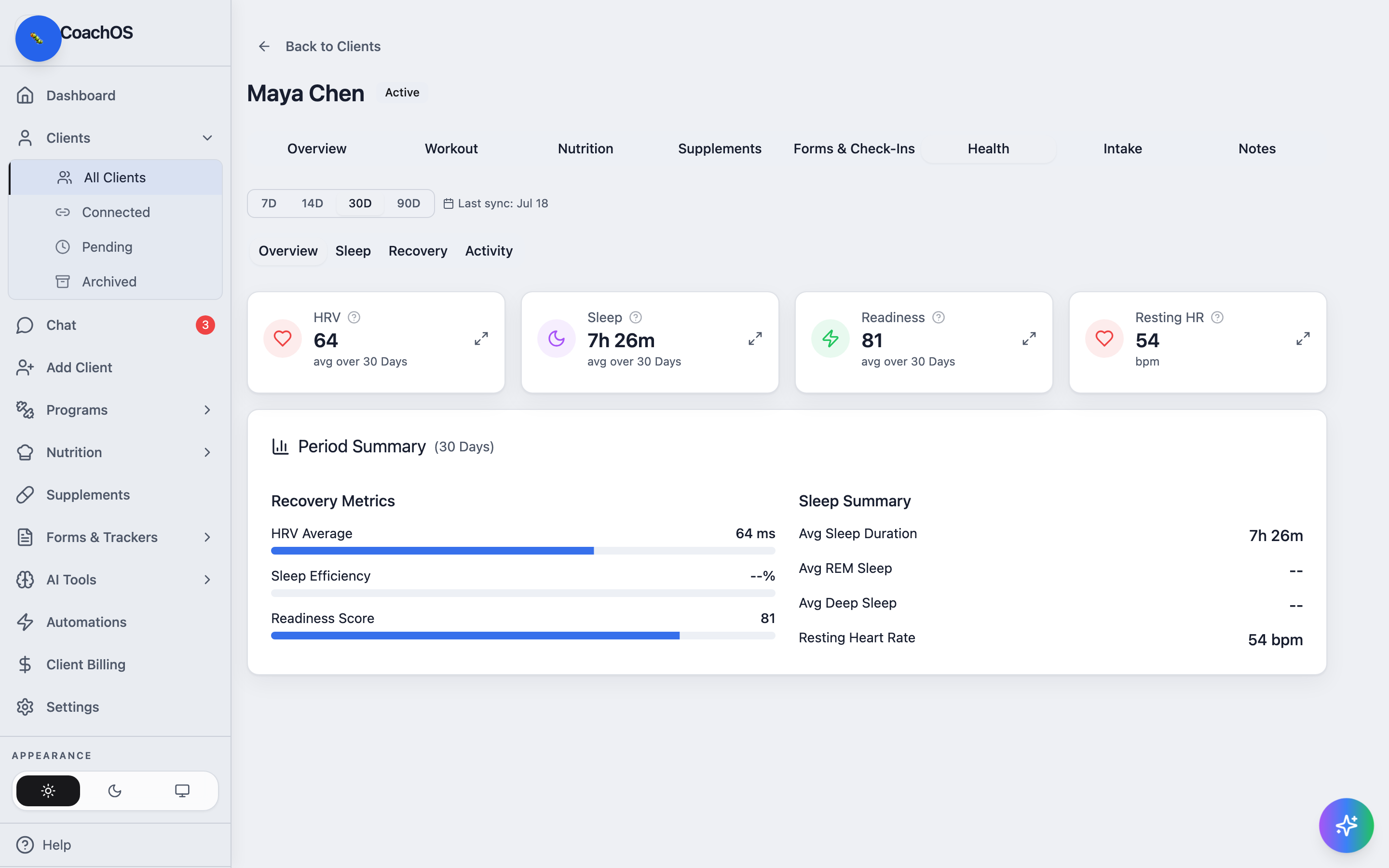
Switch between 7D, 14D, 30D, and 90D, and use the Overview / Sleep / Recovery / Activity tabs to drill into each area.
3. Watch for trends
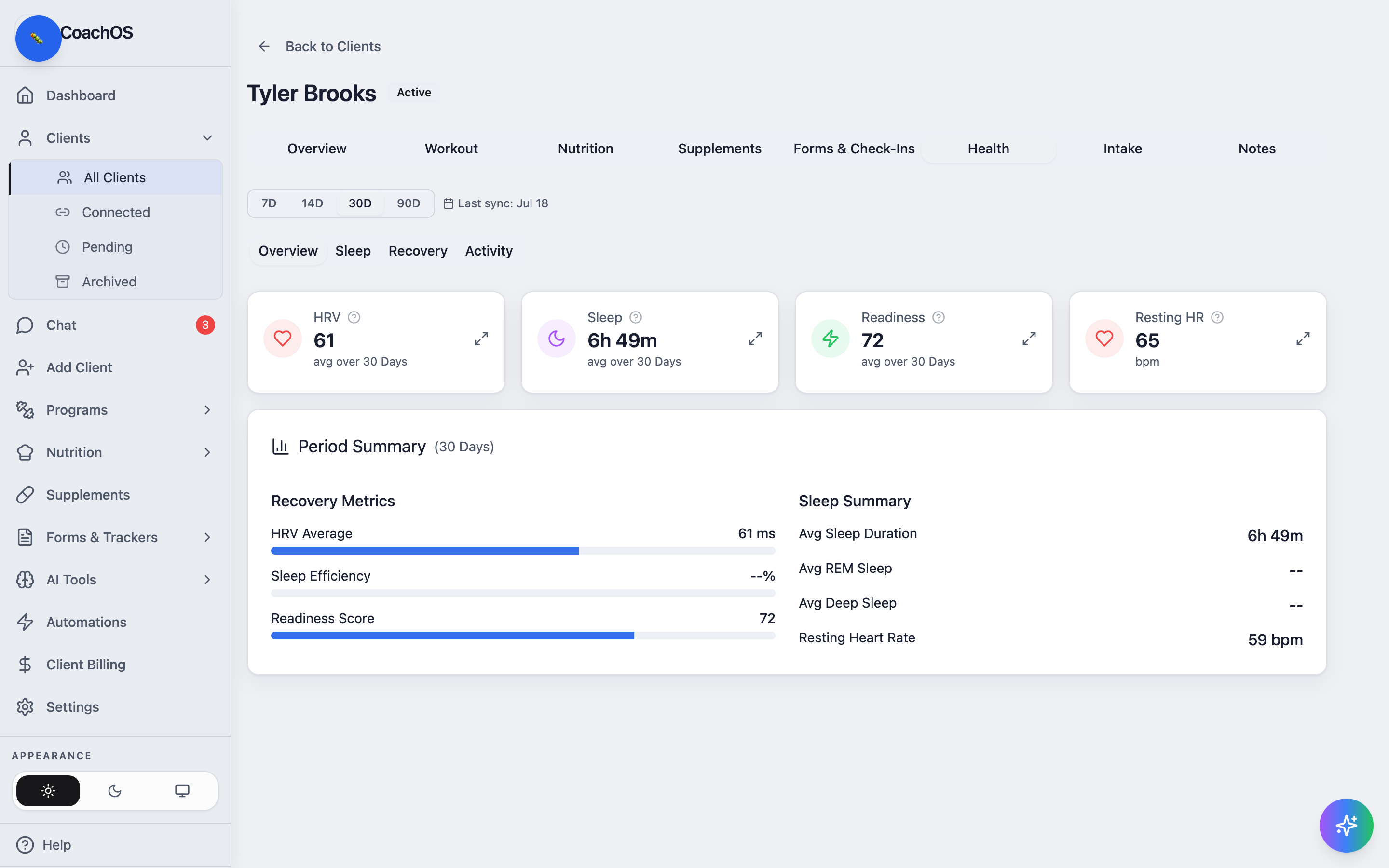
Declining sleep and HRV usually show up here before the client says anything. When a client's 3-day sleep average drops below 6.5 hours or HRV falls well under their baseline, they also appear in your dashboard's Sleep alerts and HRV flags — the Health tab is where you look deeper.
Clients connect their device themselves: in their app, Health → Connect Device walks them through the Oura sign-in. Once connected, data syncs automatically every hour.