
Programs are multi-week training plans built from reusable workouts. Build the program once, then assign it to any number of clients.
1. Open your programs
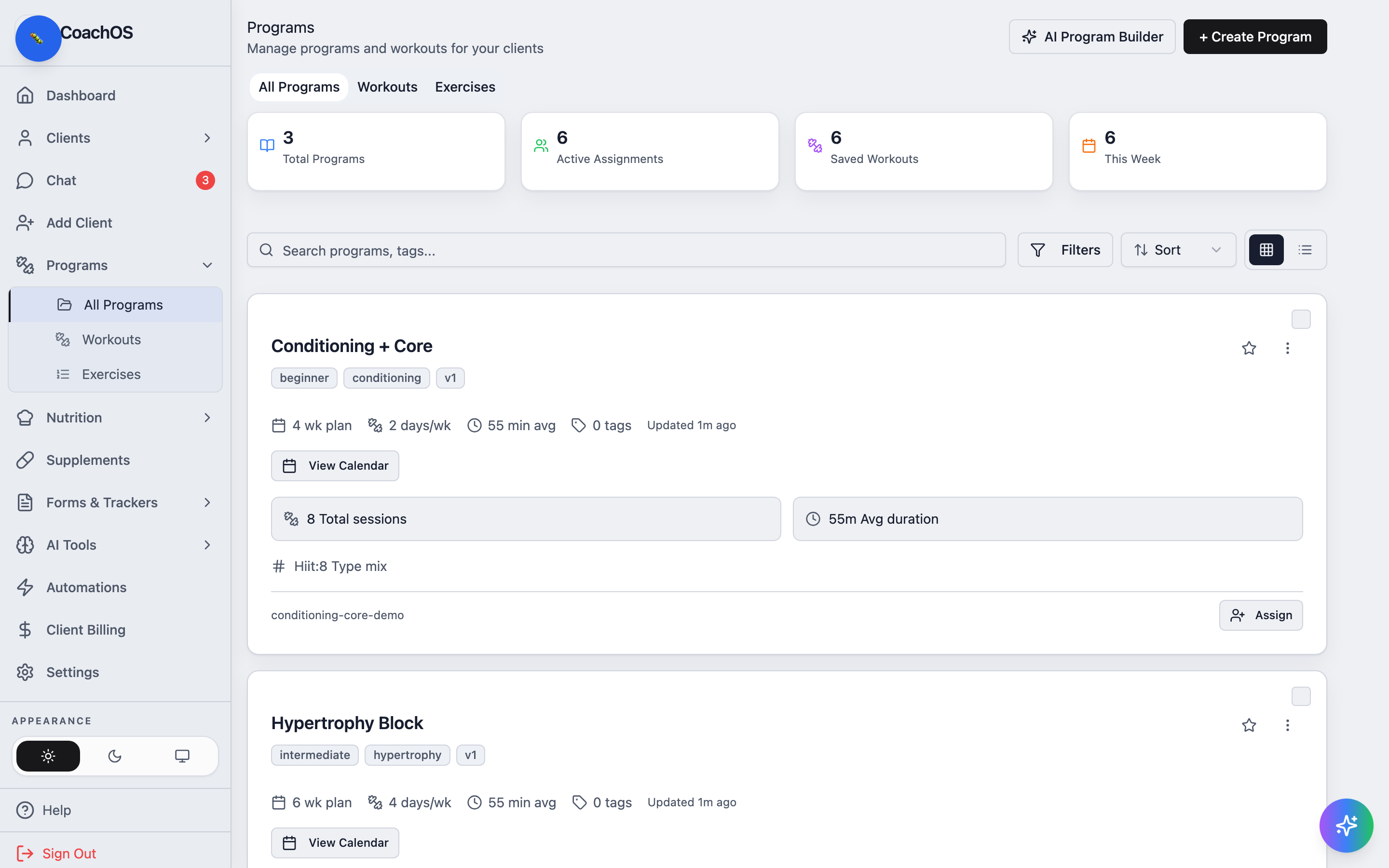
In the sidebar, click Programs → All Programs. Each program card shows its length, days per week, and total sessions, plus View Calendar and Assign actions.
2. Create a program
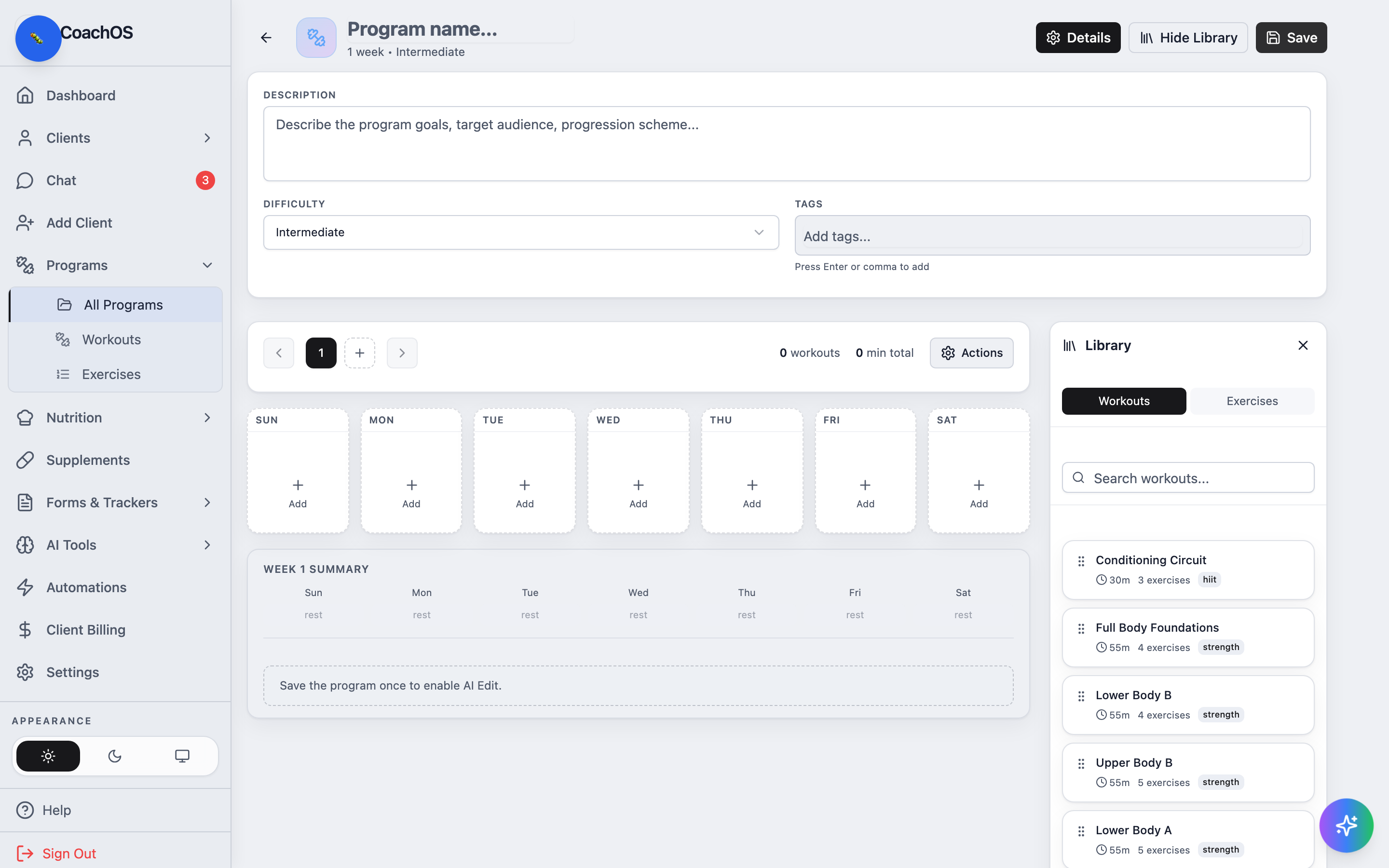
Click + Create Program. Name the program, add a description, and set DIFFICULTY and TAGS. Build each week by clicking + Add on a day and picking a workout from the Library panel on the right — drag to reorder, and use the week paginator to add more weeks. The WEEK 1 SUMMARY row tracks what each day holds. Click Save when the structure is in place.
3. Manage your workout library
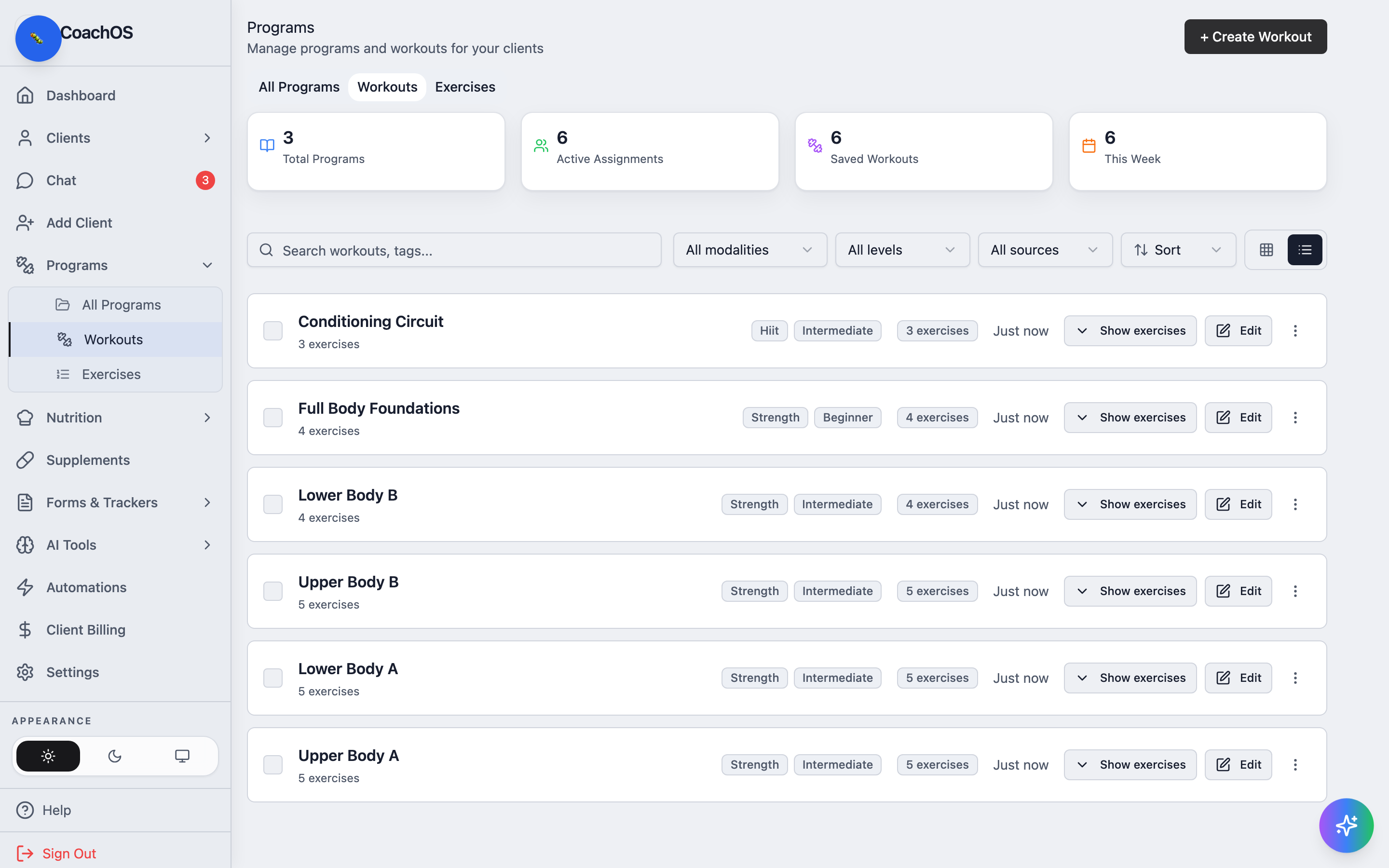
The Workouts tab holds the reusable building blocks. Click + Create Workout to build one, Show exercises to preview a workout's contents, or Edit to change it. Workouts you edit here update the library copy — programs snapshot their own copies when assigned, so active clients aren't disrupted.
If you prefer to start from a prompt, AI Program Builder on the programs page drafts a program you can then edit in the same builder.