
Assigning puts a program on a client's calendar from a start date you choose. A client has one active program at a time.
1. Find the program
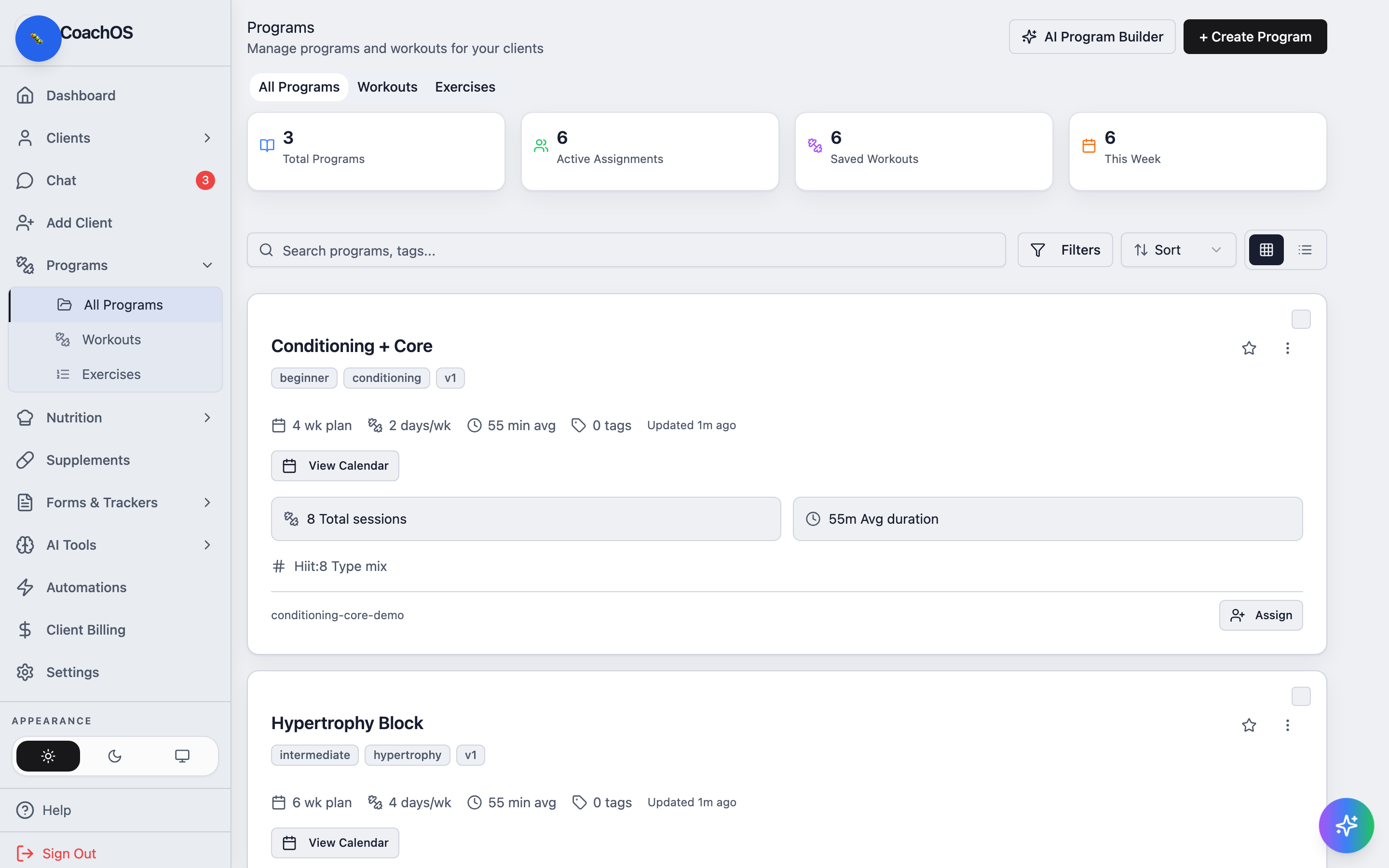
Go to Programs → All Programs and find the program you want to hand out.
2. Open the assign dialog
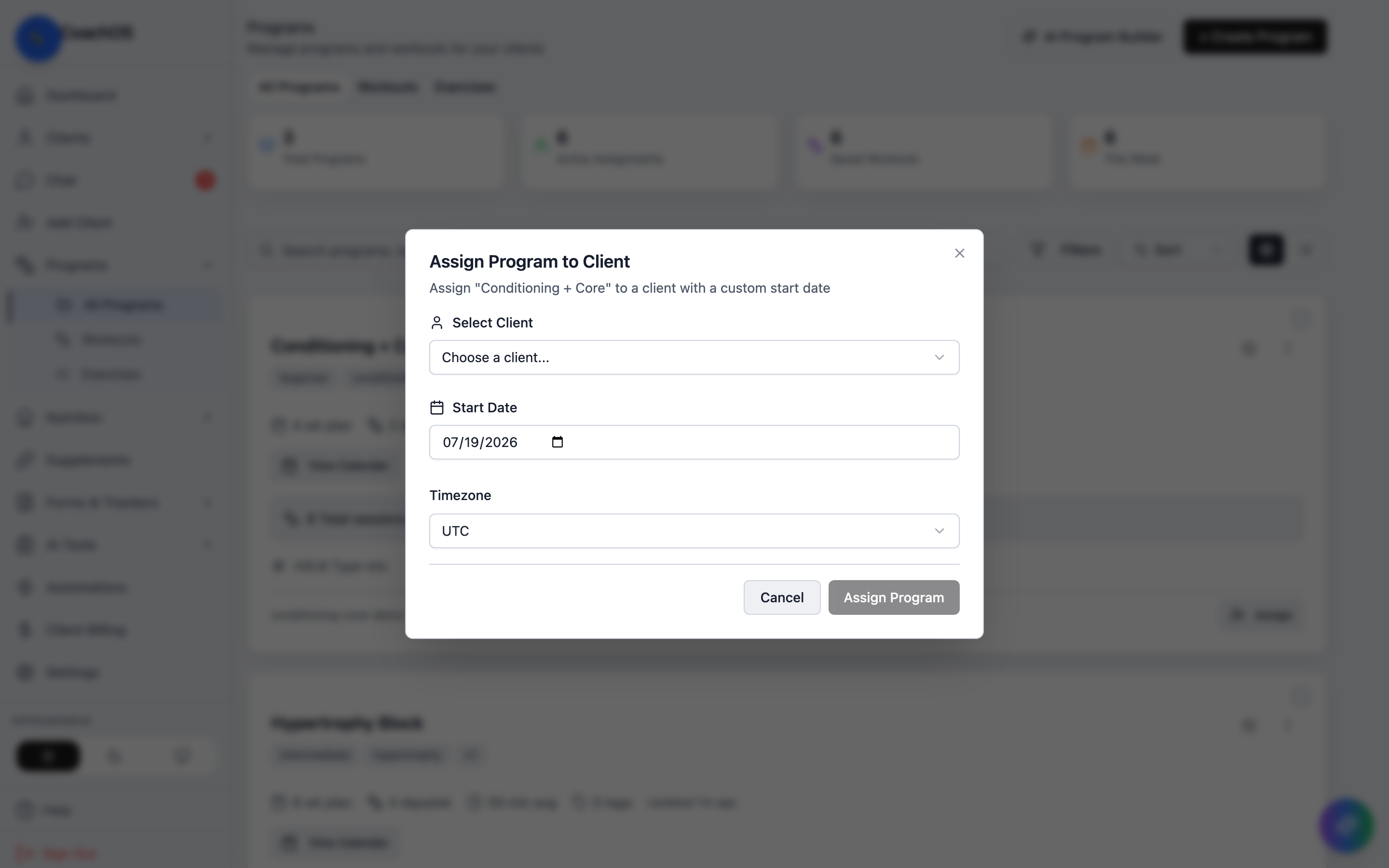
Click Assign on the program card. The Assign Program to Client dialog opens.
3. Pick the client and start date
Choose the client under Select Client, set the Start Date, and check the Timezone — it controls which day each session lands on.
4. Confirm
Click Assign Program. The full schedule is generated onto the client's Workout tab immediately, and your roster shows their current program week (for example, "Foundation Strength Week 3/8"). The client sees the plan the next time they open their app.
If the client already has an active program, remove it first from their Workout tab (Remove) before assigning the new one.