
The AI Program Builder turns a written description — or an existing PDF — into a real, editable program in your library. AI features require a Pro or Unlimited plan.
1. Open the builder
On Programs → All Programs, click AI Program Builder.
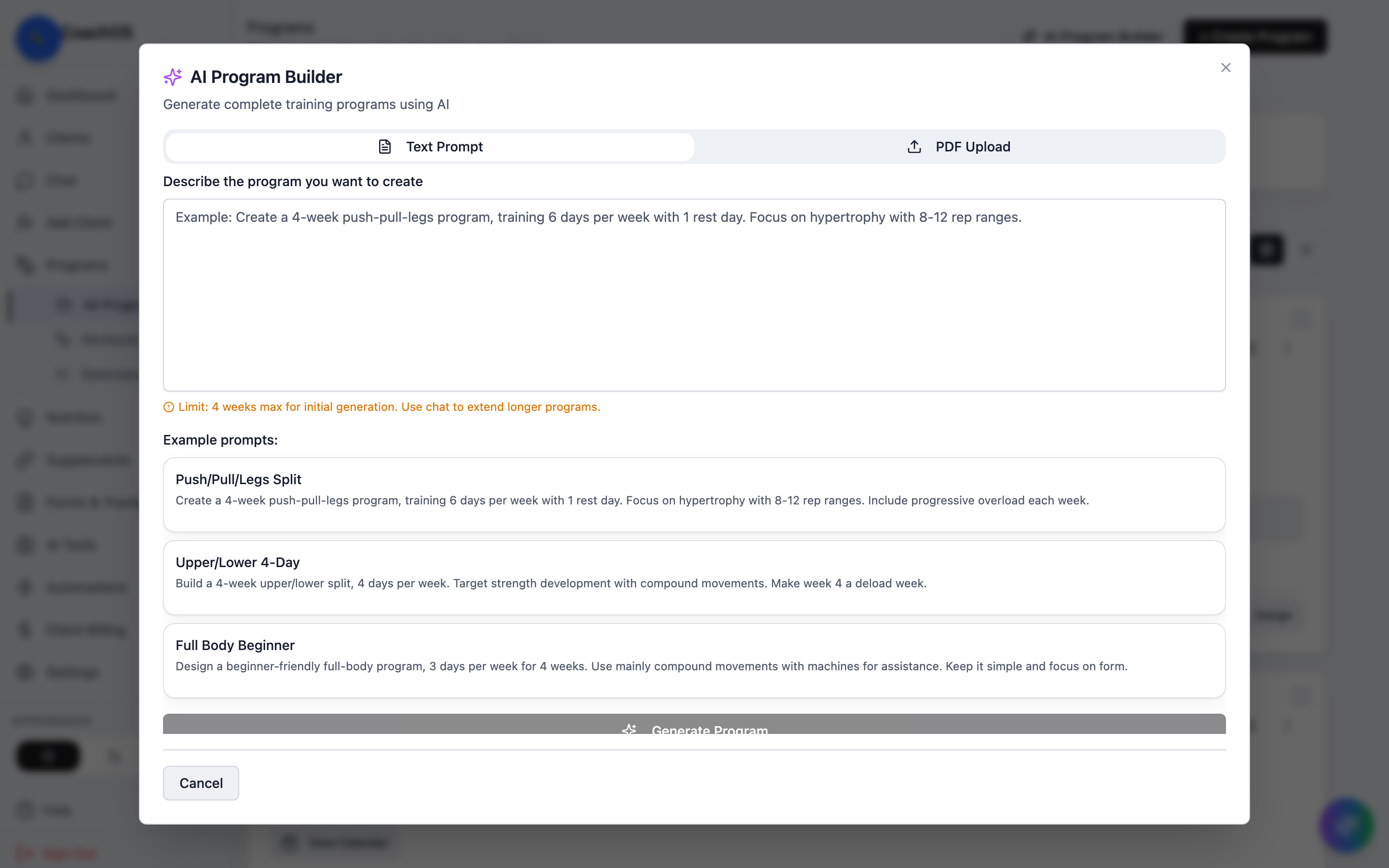
2. Describe the program
In the Text Prompt tab, describe what you want — focus, level, session length. Initial generation is capped at 4 weeks; you extend longer programs in chat afterwards.
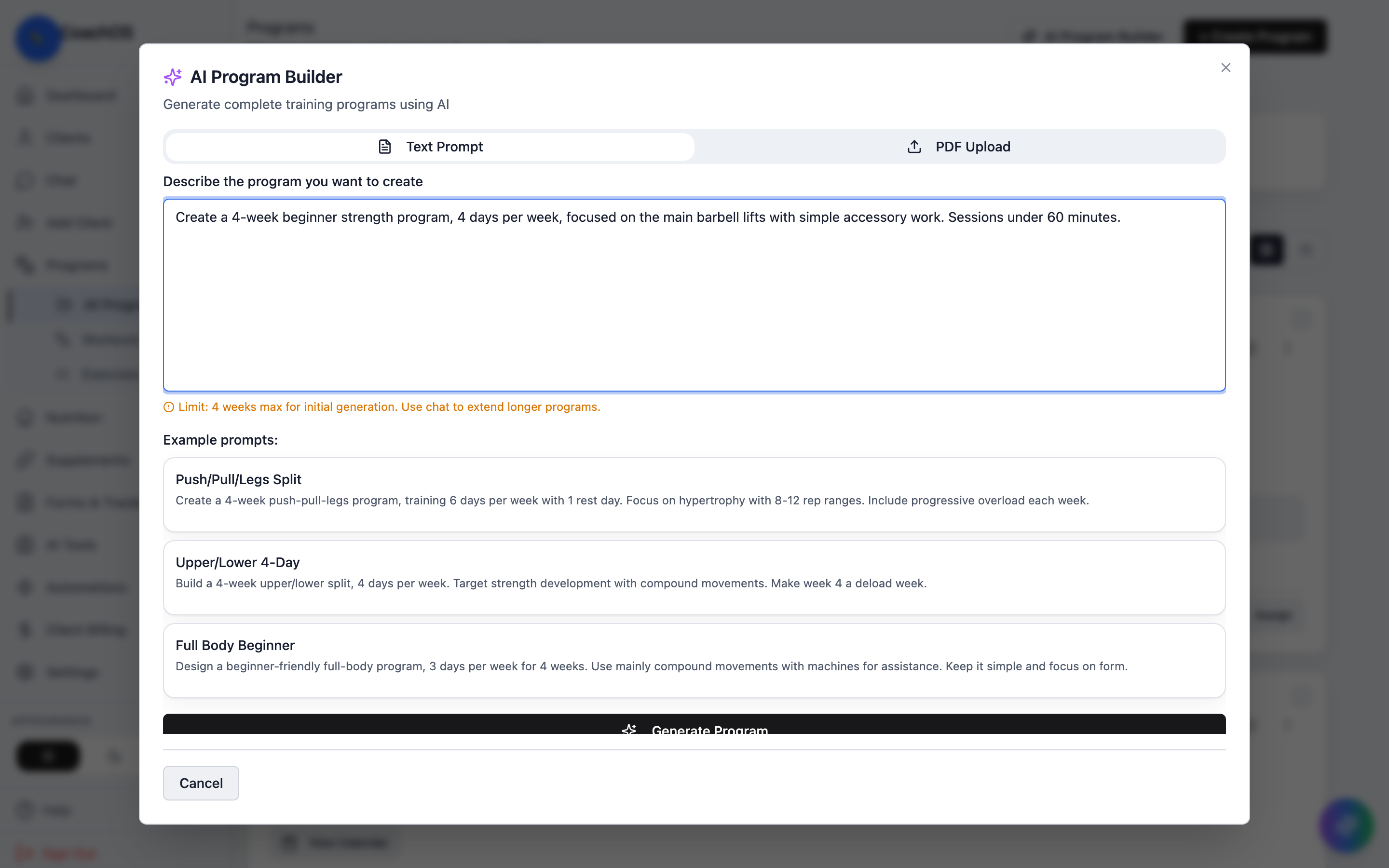
3. Generate and review
Click Generate Program (it takes 30–90 seconds). The Program Preview on the right is fully editable — name, level, and every day's workout.
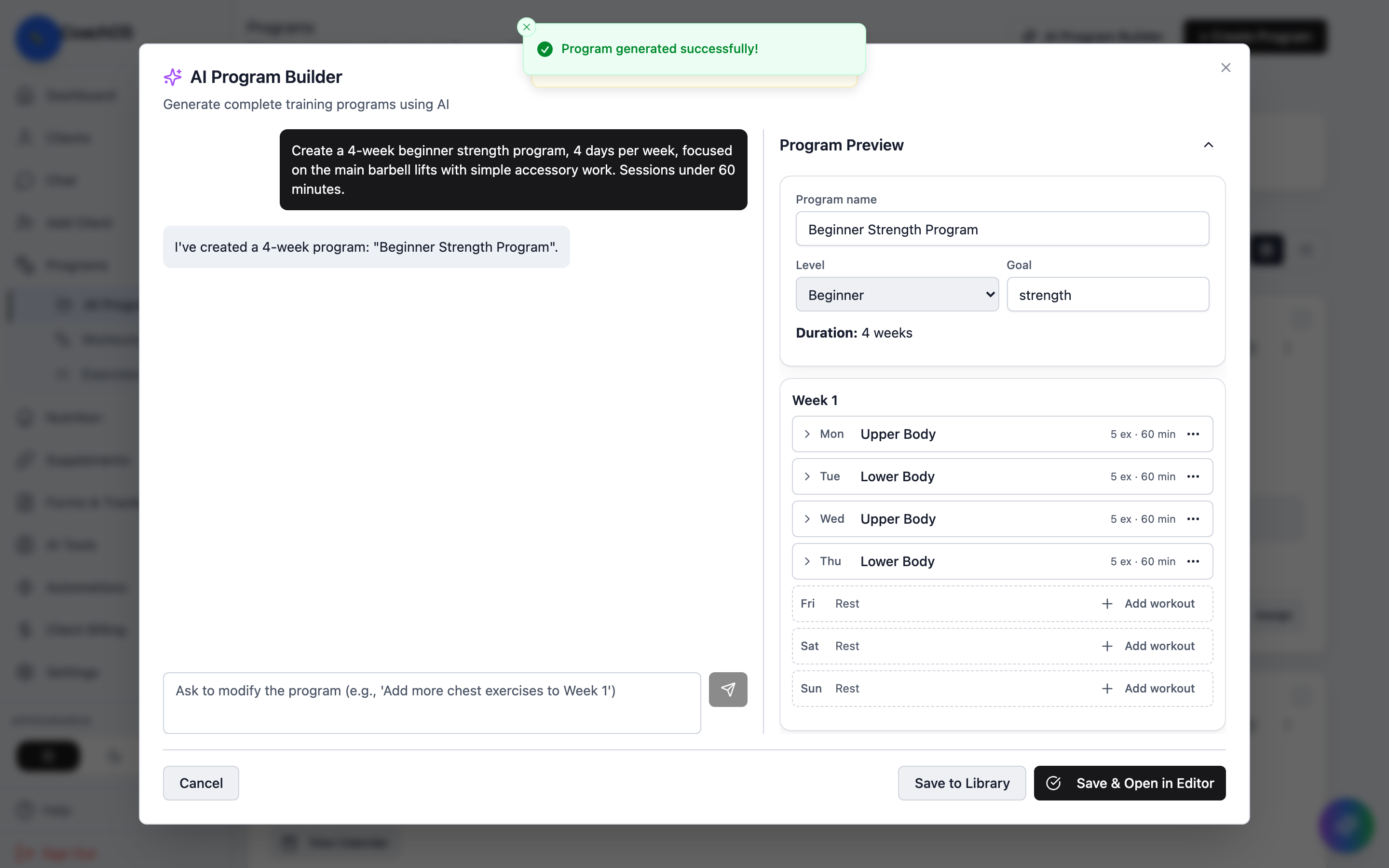
4. Refine and save
Use the chat box to adjust ("Add more chest work to week 2", "Extend to 8 weeks"), then Save to Library — or Save & Open in Editor to keep fine-tuning by hand. From there it assigns like any other program.
You can also start from a PDF: the PDF Upload tab parses an existing program and asks you to confirm any exercise matches it wasn't sure about before saving.