Automations watch client activity and send a message on your behalf when a rule fires — the nudge goes out even when you're busy.
1. Open Automations
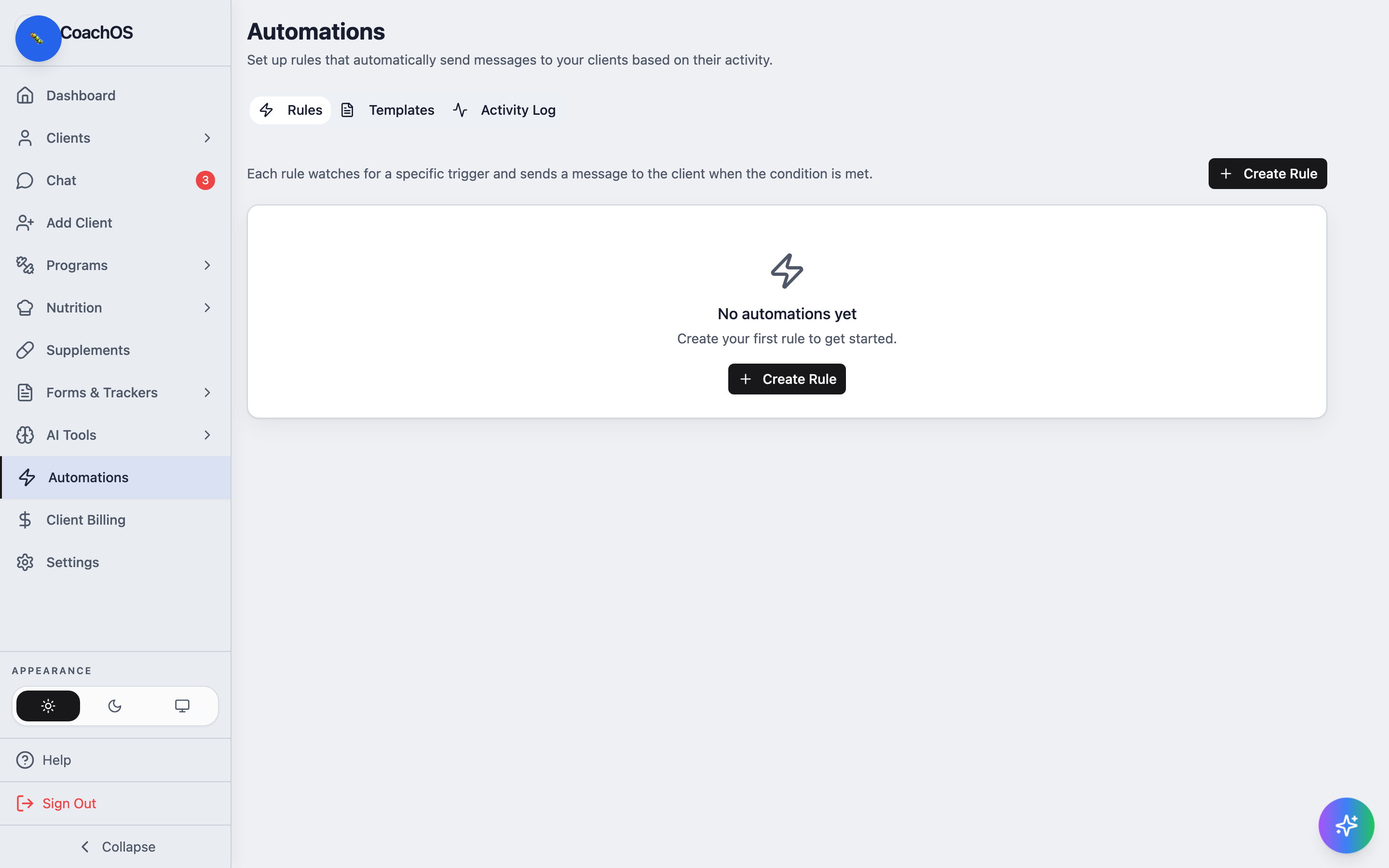
In the sidebar, click Automations. The Rules tab lists your active rules; Activity Log shows every message an automation has sent.
2. Create a rule
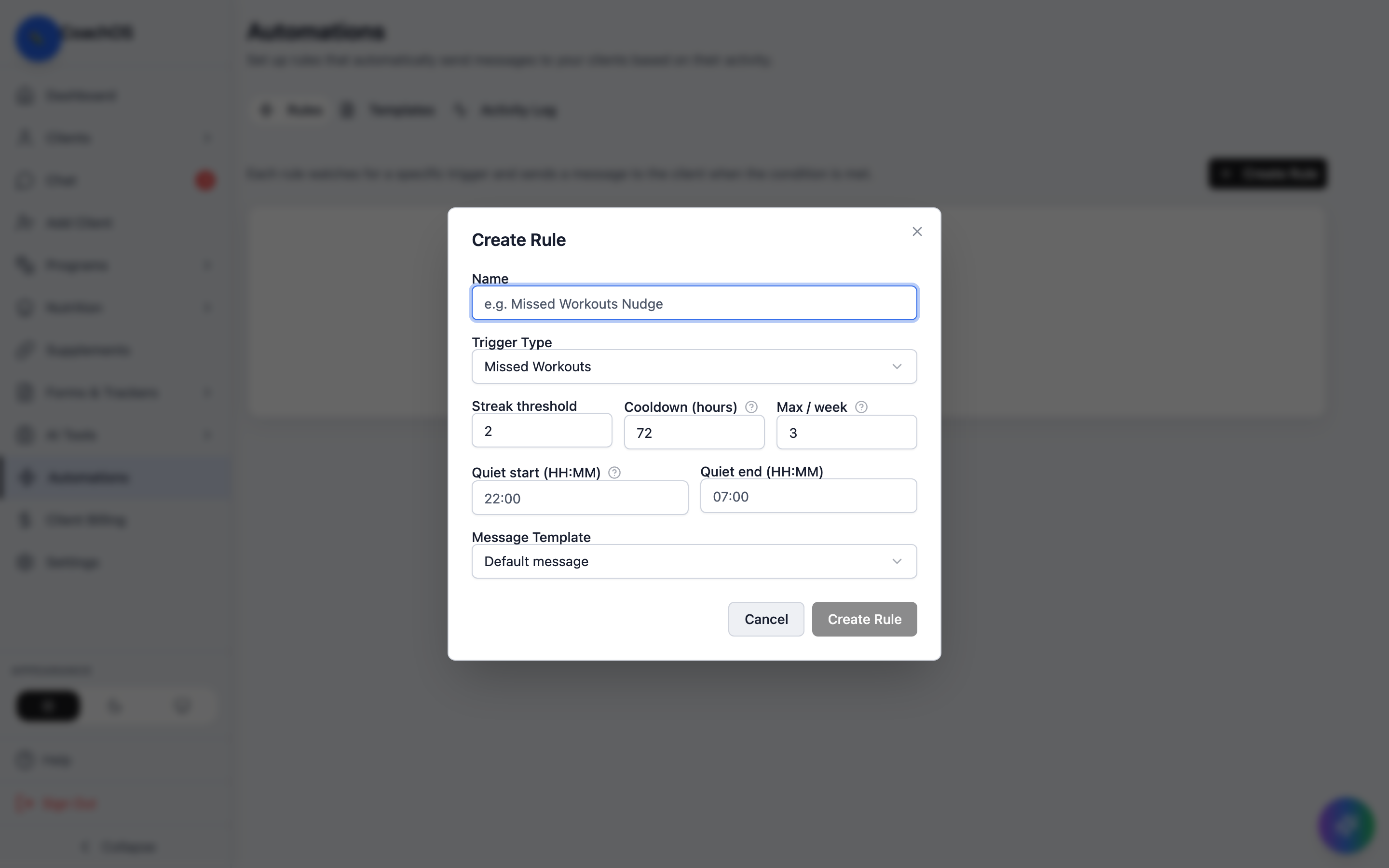
Click Create Rule. Give it a Name and pick the Trigger Type — for example Missed Workouts.
3. Tune when it fires
Set the Streak threshold (how many misses before it triggers), Cooldown (hours) between messages, and Max / week so clients never feel spammed. Quiet start (HH:MM) and Quiet end (HH:MM) stop messages from going out overnight. Pick a Message Template and click Create Rule.
4. Customize the messages
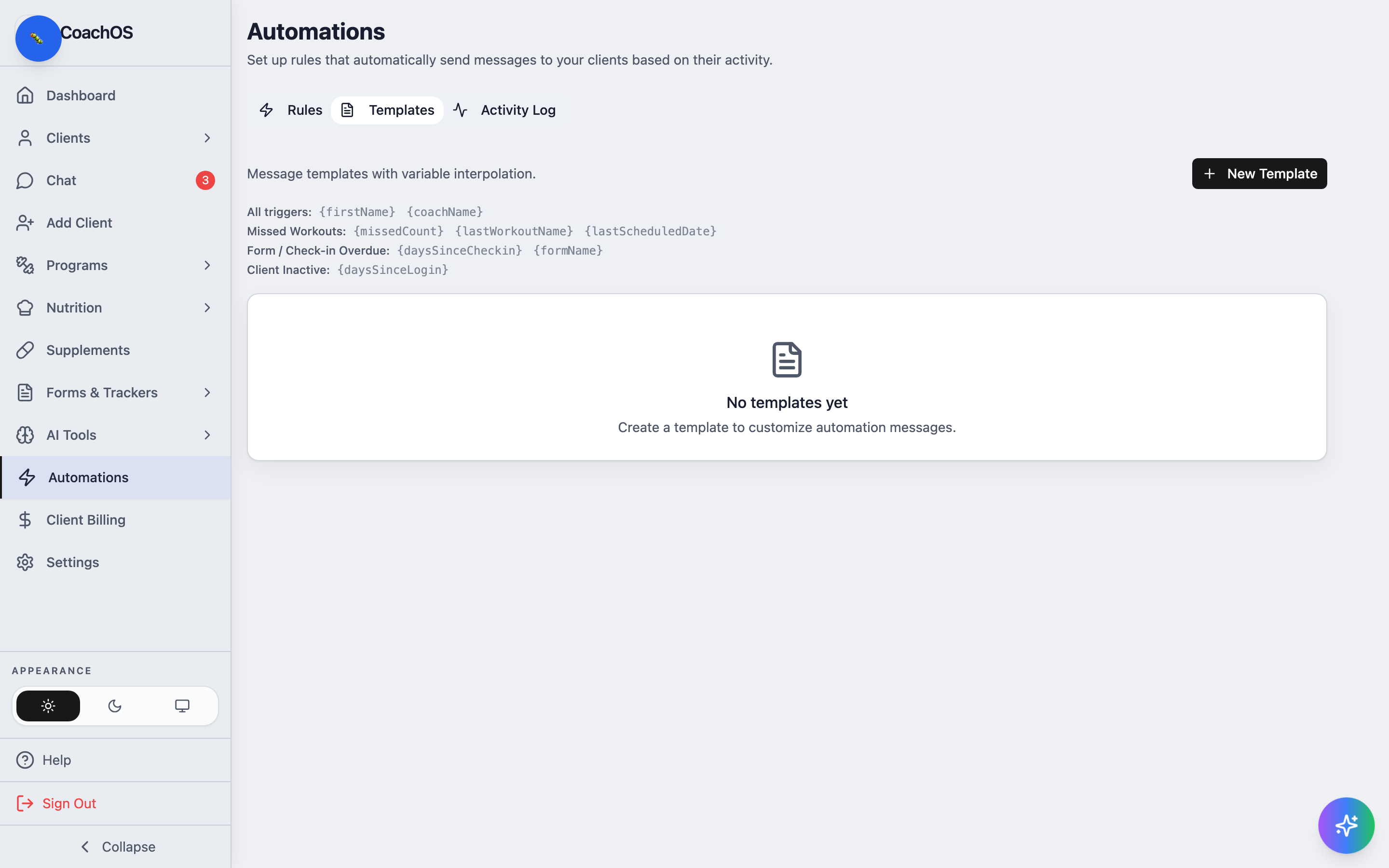
The Templates tab lets you write your own message templates with
variables — {firstName} and {coachName} work everywhere, and each
trigger adds its own (like {missedCount} and {lastWorkoutName} for
missed workouts). Click New Template, write the message, then select it
in your rule.