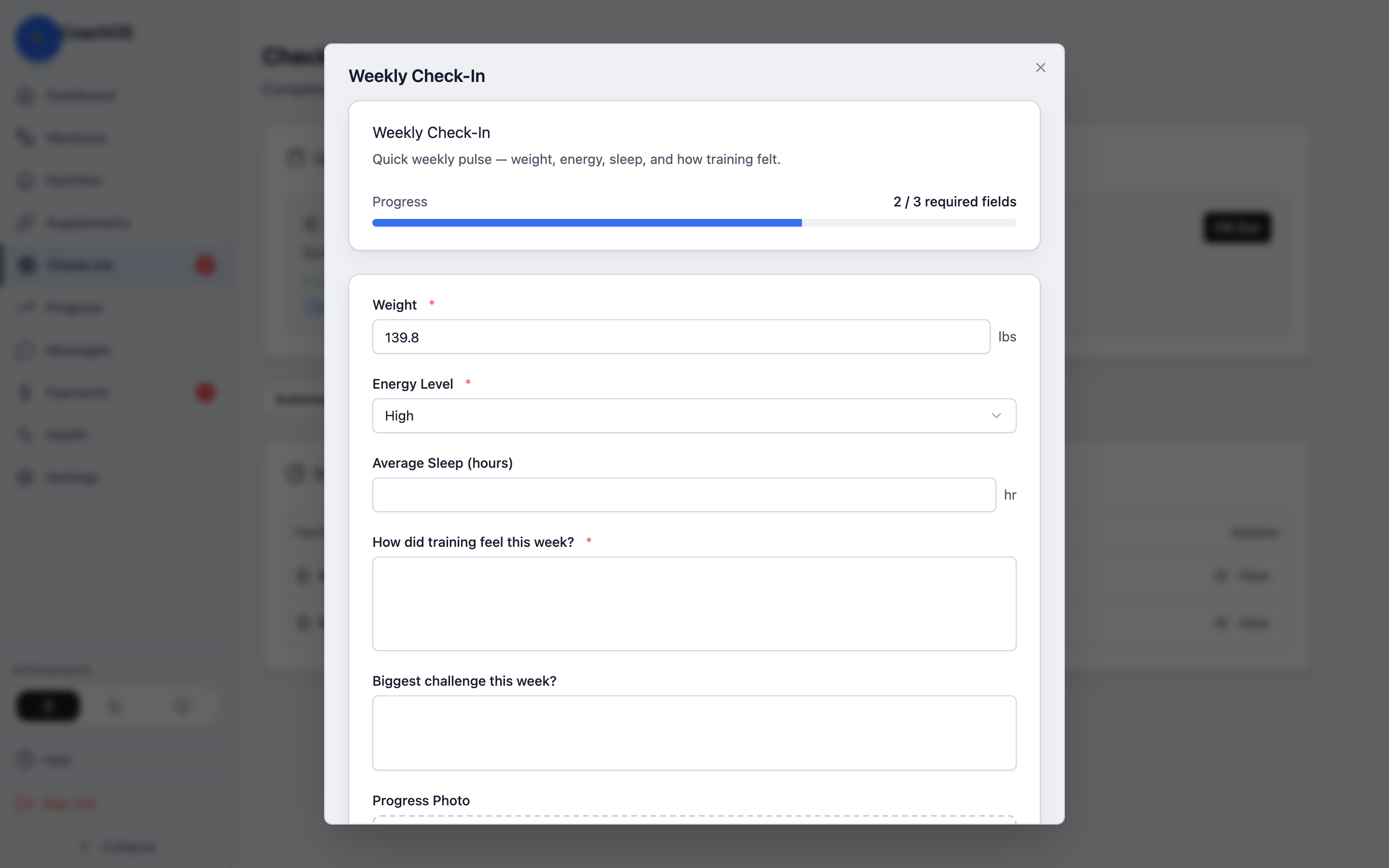
Check-ins are how your coach keeps a pulse on your week. They arrive on a schedule, and a badge on Check-Ins shows when one is due.
1. Open Check-Ins
Tap Check-Ins in the sidebar. Due forms appear at the top under Overdue or Due Today.
2. Fill it out
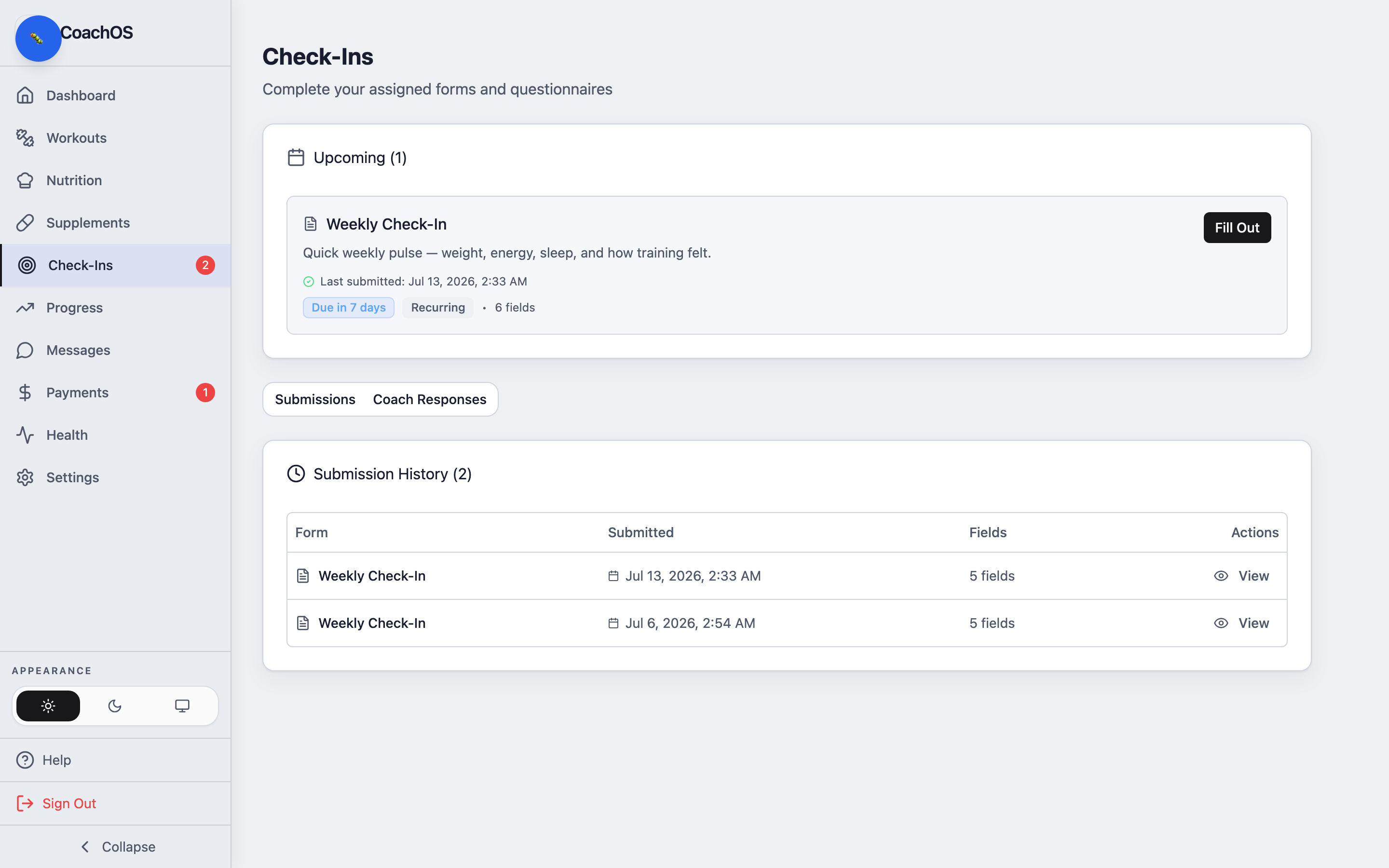
Tap Fill Out. Answer each question — required ones are marked with an asterisk, and the progress bar tracks how many you've completed. If the form has a photo field, add your progress photos there.
3. Submit
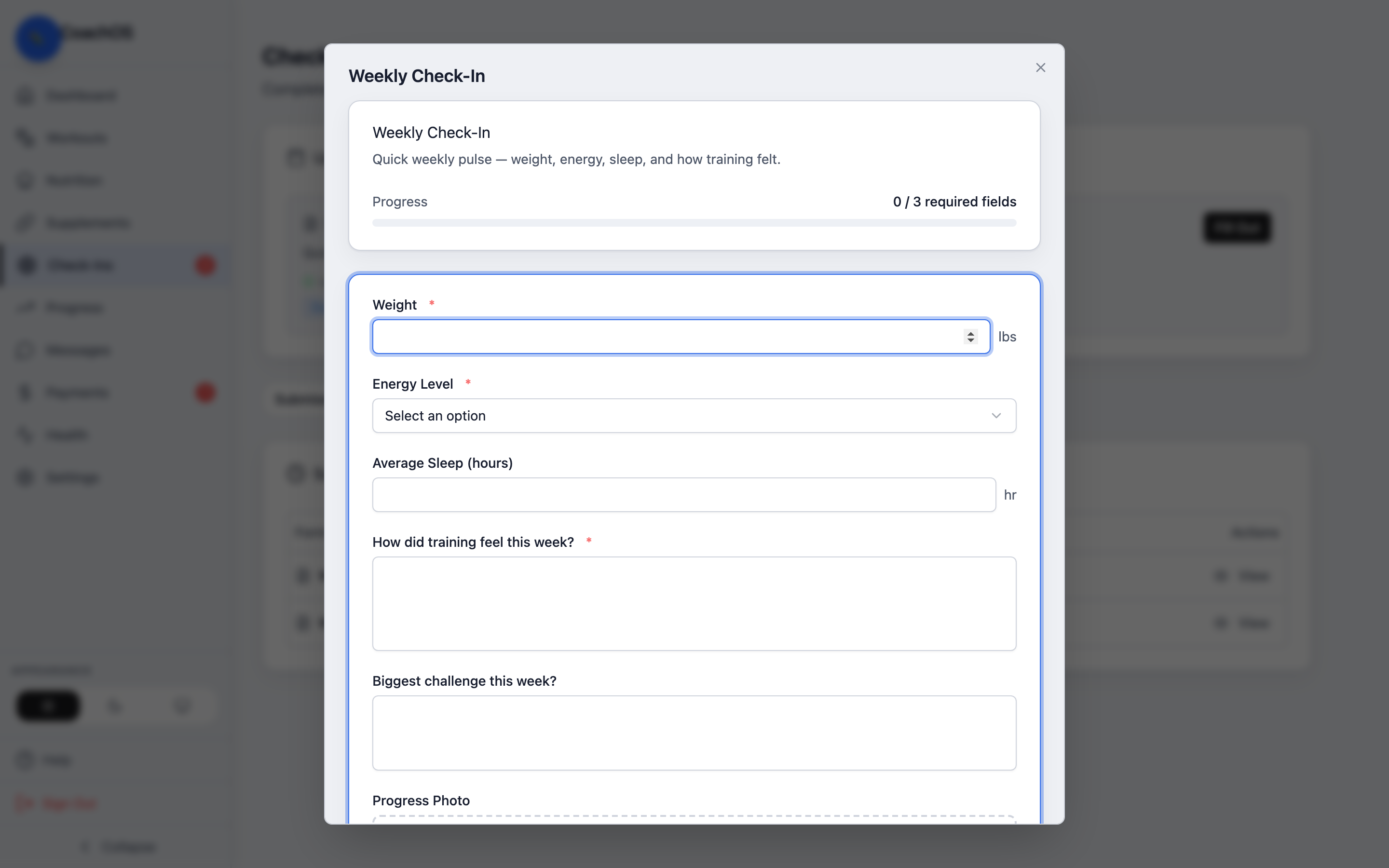
Complete the required fields and submit. Your coach gets your answers right away, and you can see past submissions and their replies under the Submissions and Coach Responses tabs.