
You can log training for a client yourself — handy for in-person sessions or when a client forgets. Entries you make are tagged as coach-logged so the attribution stays clear.
1. Open the client's calendar
Open the client from your roster, go to the Workout tab, and find the day on the calendar — completed days show a green dot.
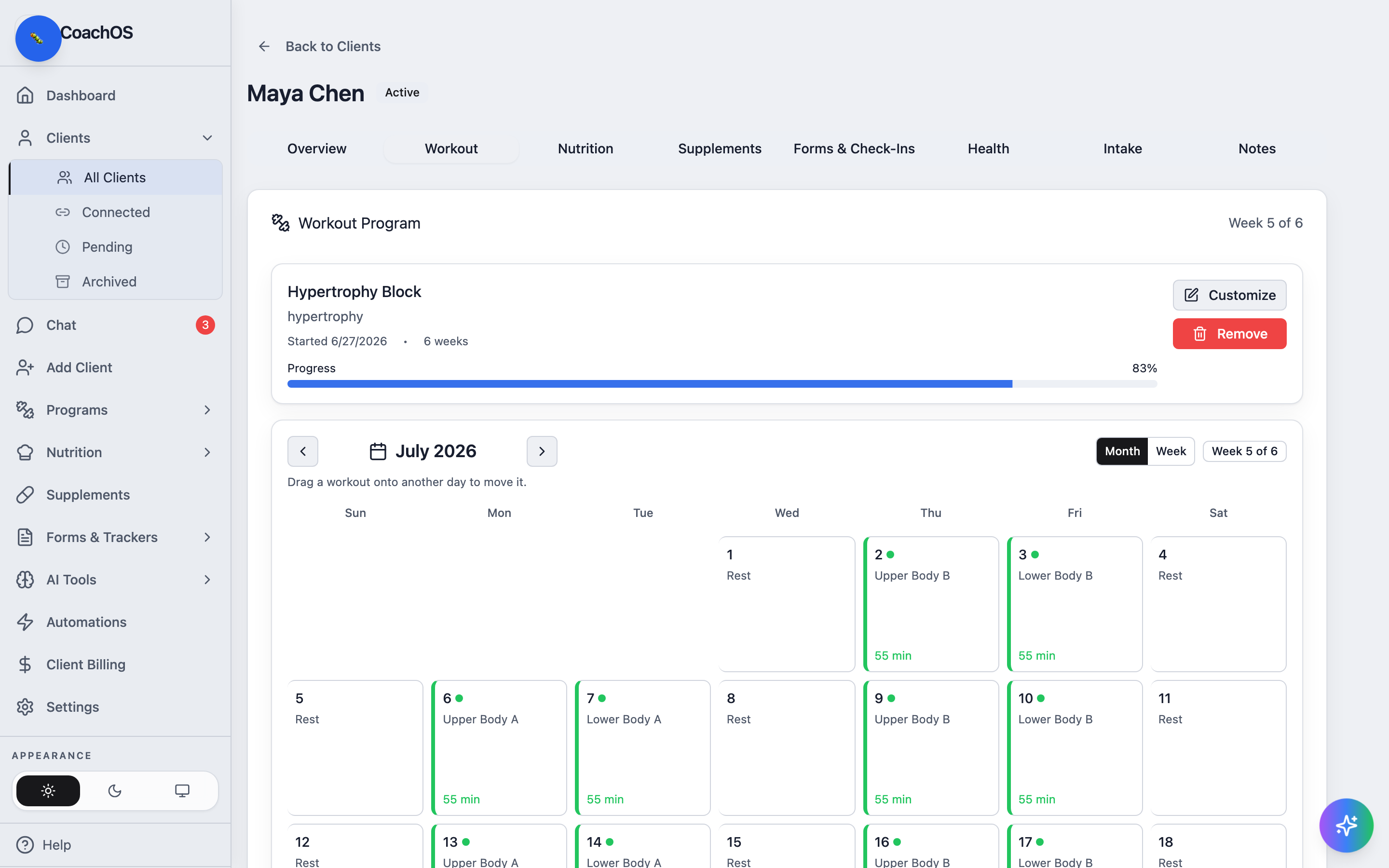
2. Open the day
Click the day to open it. Each exercise shows its prescription and a Coach's log panel.
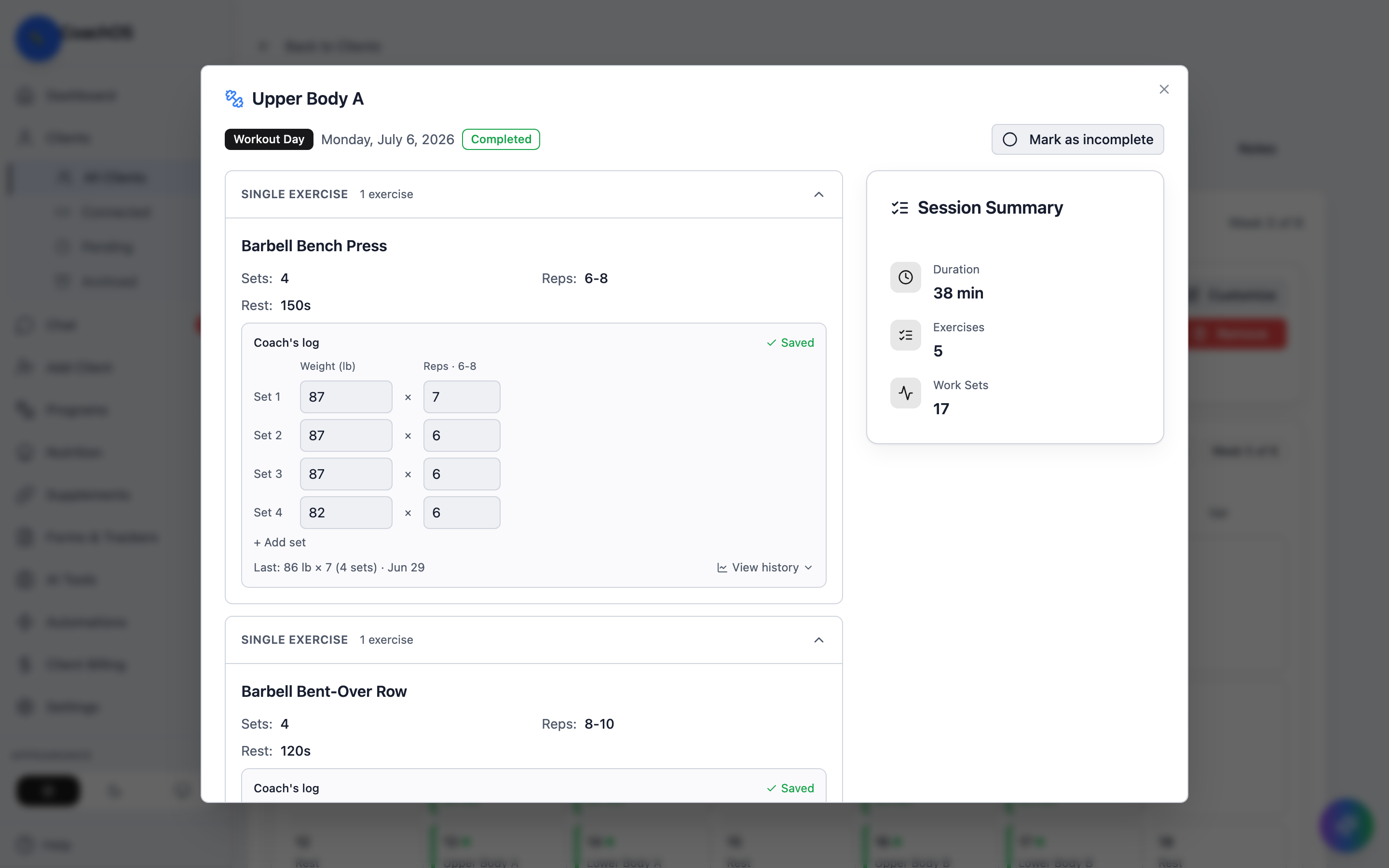
3. Enter the sets
Fill in the Weight and Reps for each set — it autosaves, showing Saved and the client's last session for reference. Use + Add set for extra sets. When the session's done, toggle Mark complete.
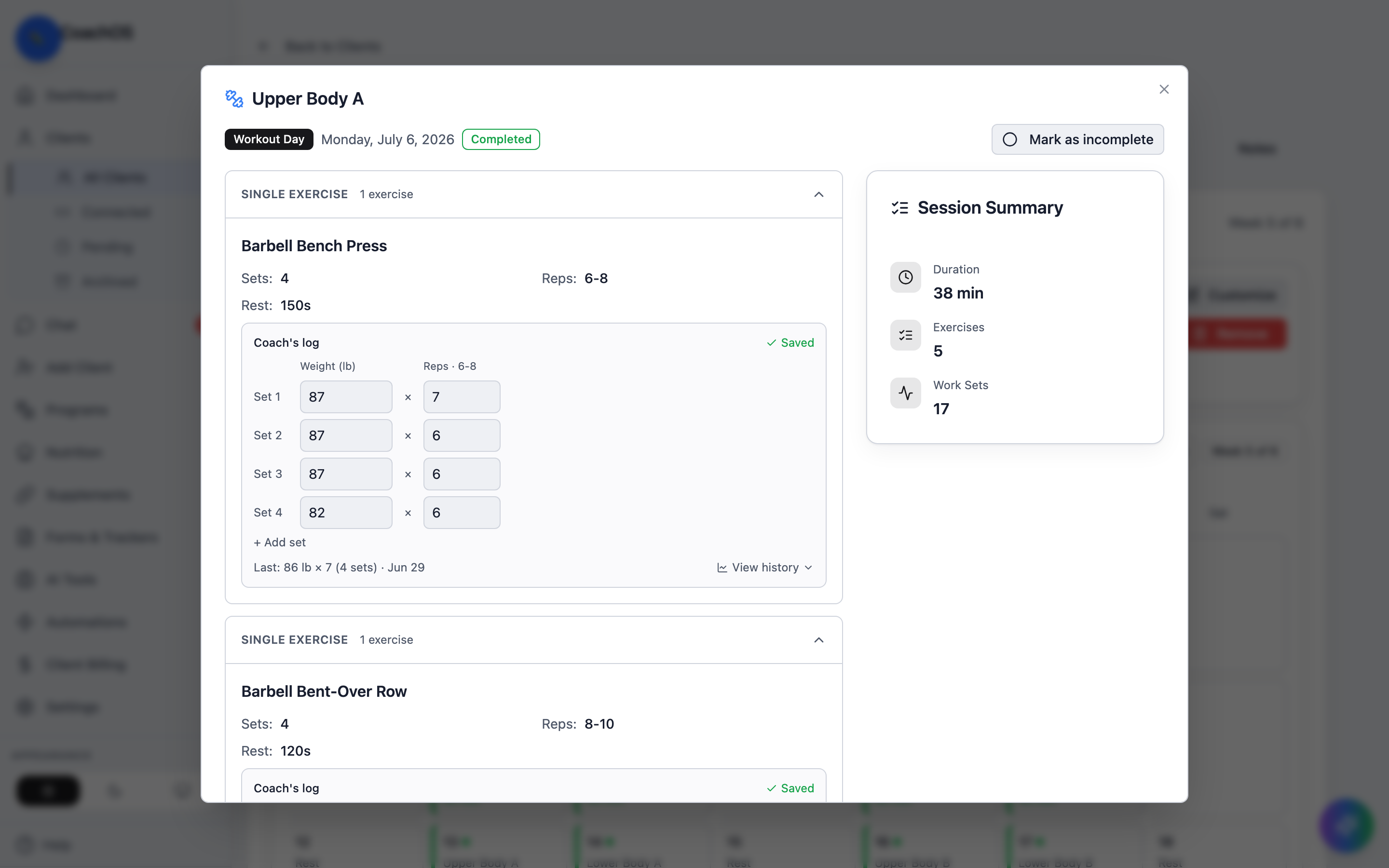
The same numbers appear in the client's own app and feed their progress charts, exactly as if they'd logged it themselves.