
Goals give you and your client a shared, measurable definition of progress — a target number, a deadline, and a progress bar you both see.
1. Open the client's goals
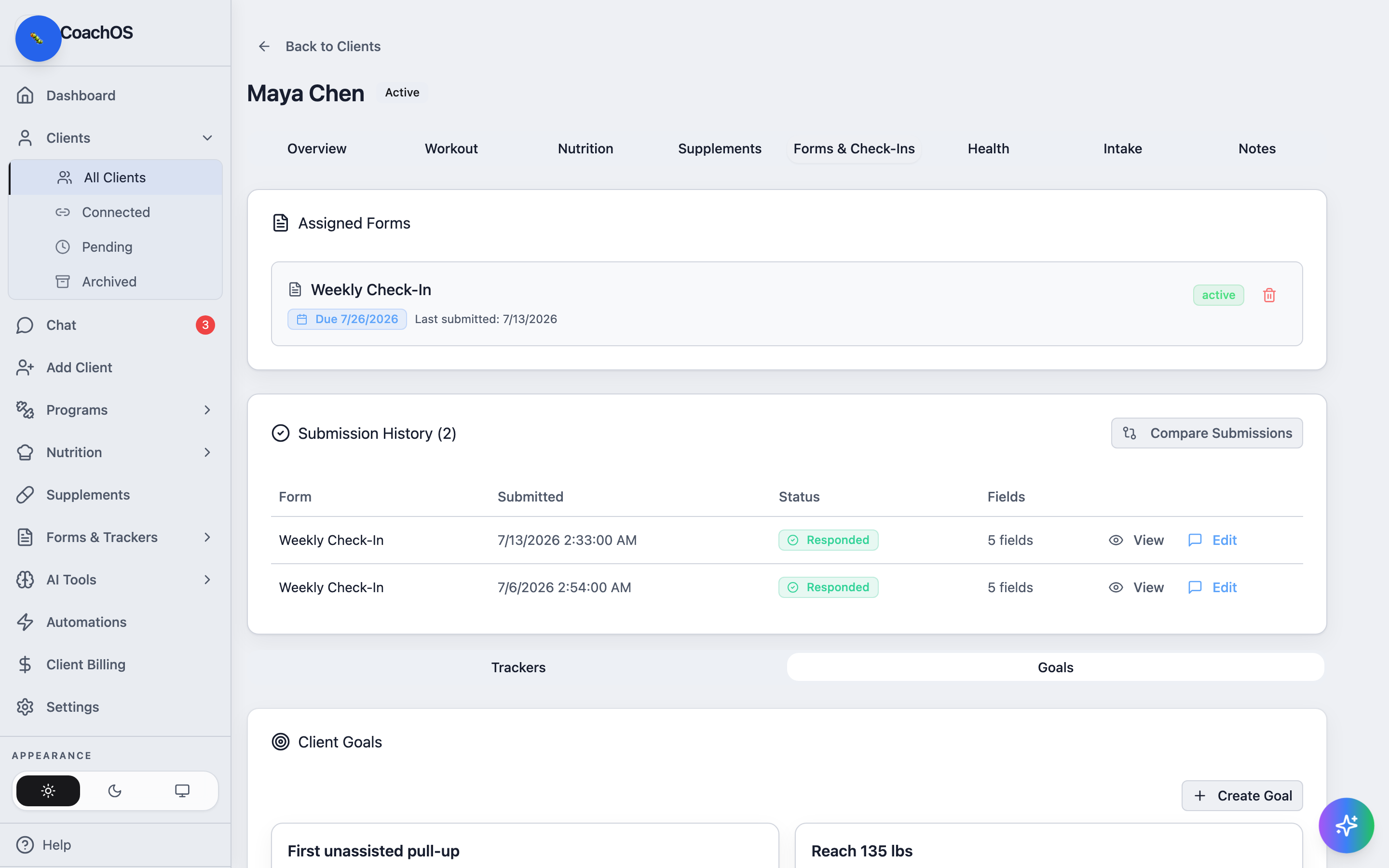
Open the client from Clients → All Clients, go to the Forms & Check-Ins tab, and switch the inner toggle to Goals. Existing goals show their progress, current vs target value, and an Auto-tracked badge when the goal is linked to a tracker.
2. Create a goal
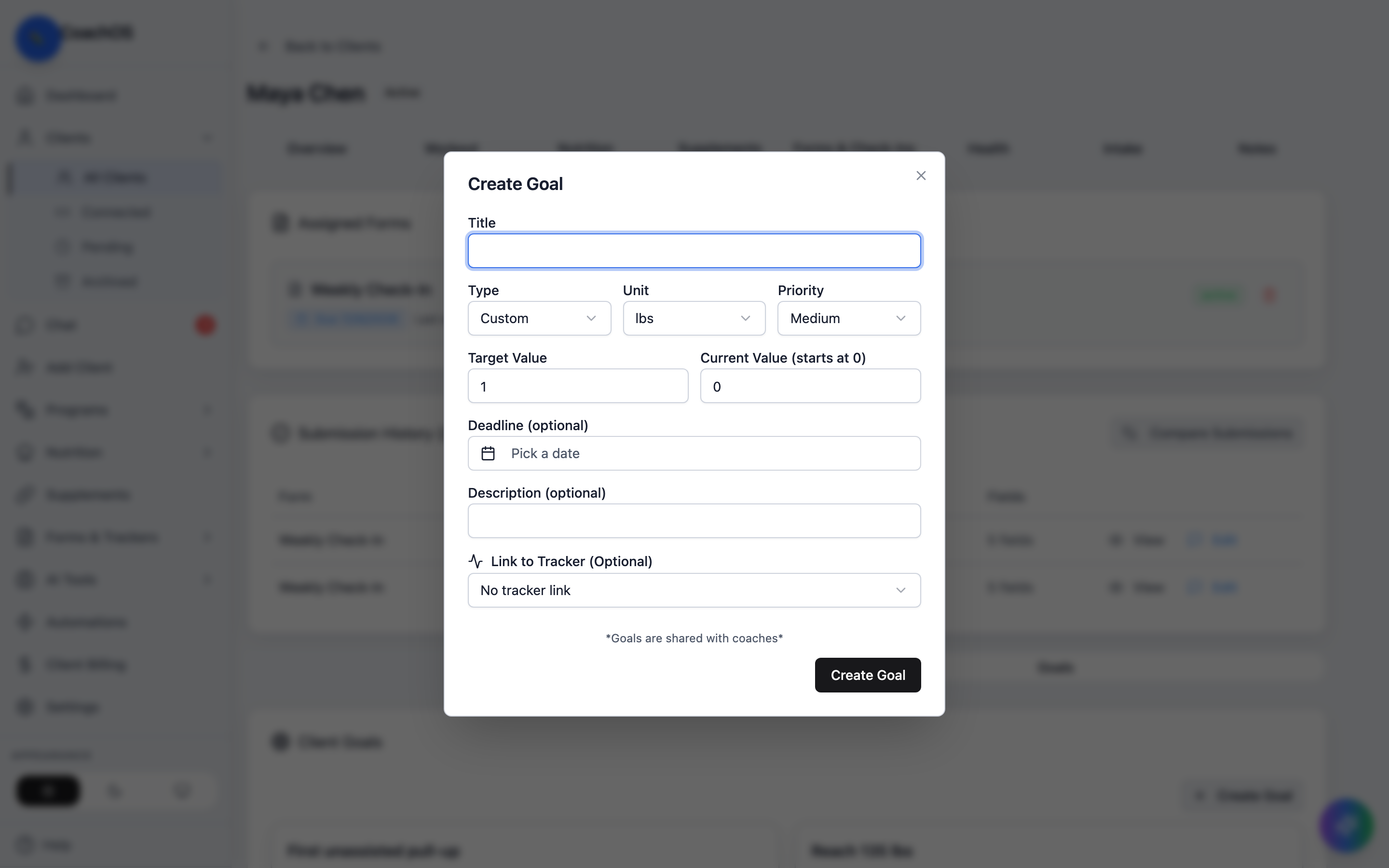
Click Create Goal. Give it a title, pick the type (weight loss, muscle gain, strength, endurance, habit, and more), set the Unit, Target Value, and Current Value, and add a deadline and priority. Link a tracker to have progress update automatically as the client logs.
Clients see their goals in their app under Progress → Goals, so the target you set here is the same one they chase day to day.