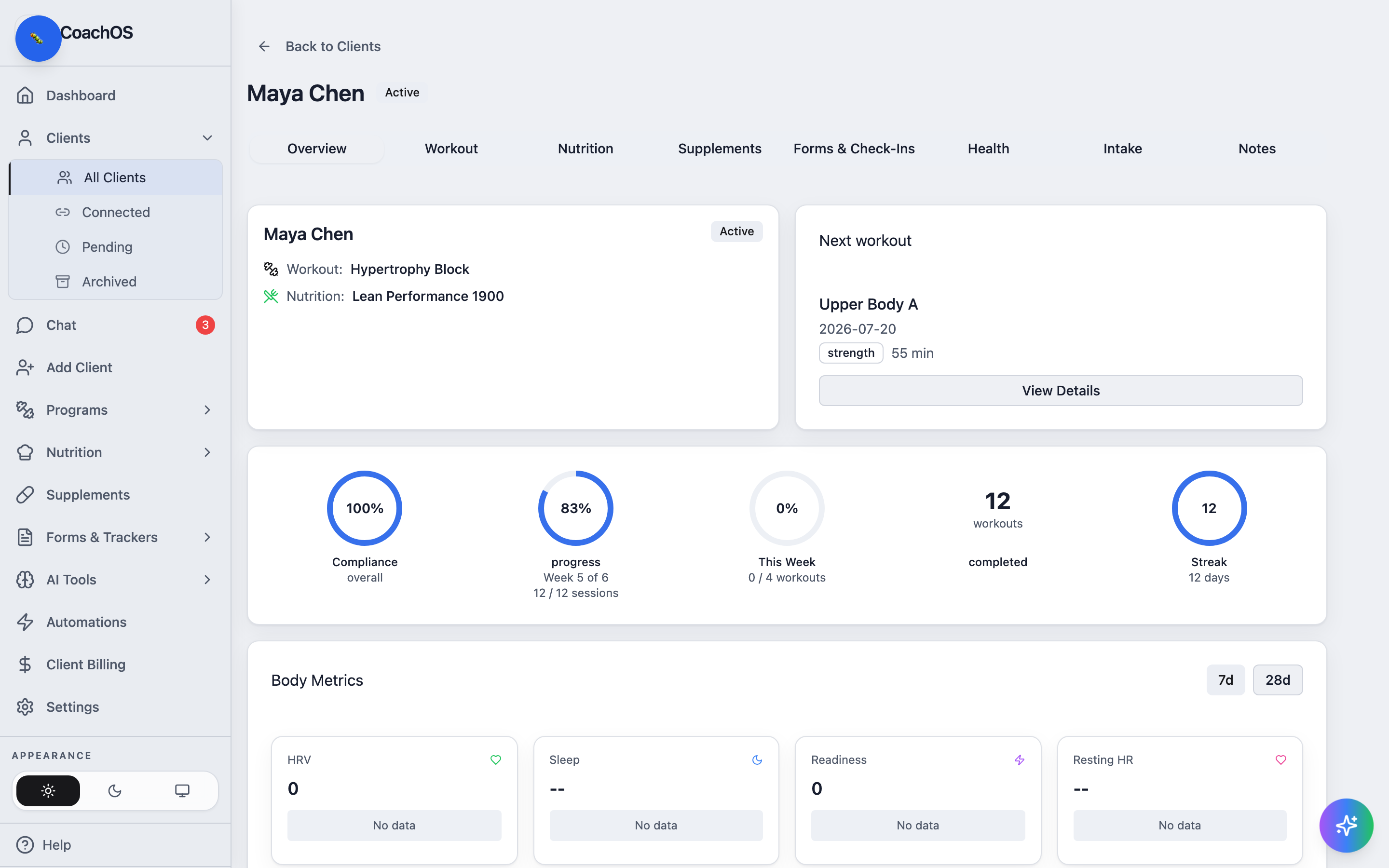
A client's profile gathers everything about them in one place, organized into tabs: Overview, Workout, Nutrition, Supplements, Forms & Check-Ins, Health, Intake, and Notes.
1. Open the client
From Clients → All Clients, click a client's name.
2. Review the Overview
The Overview tab shows their assigned program and nutrition plan, the Next workout card, and the numbers that matter: overall Compliance, block progress, This Week completion, total workouts completed, and their current Streak. Body Metrics charts wearable data over the last 7d or 28d when the client has a device connected.
3. Check the Workout tab
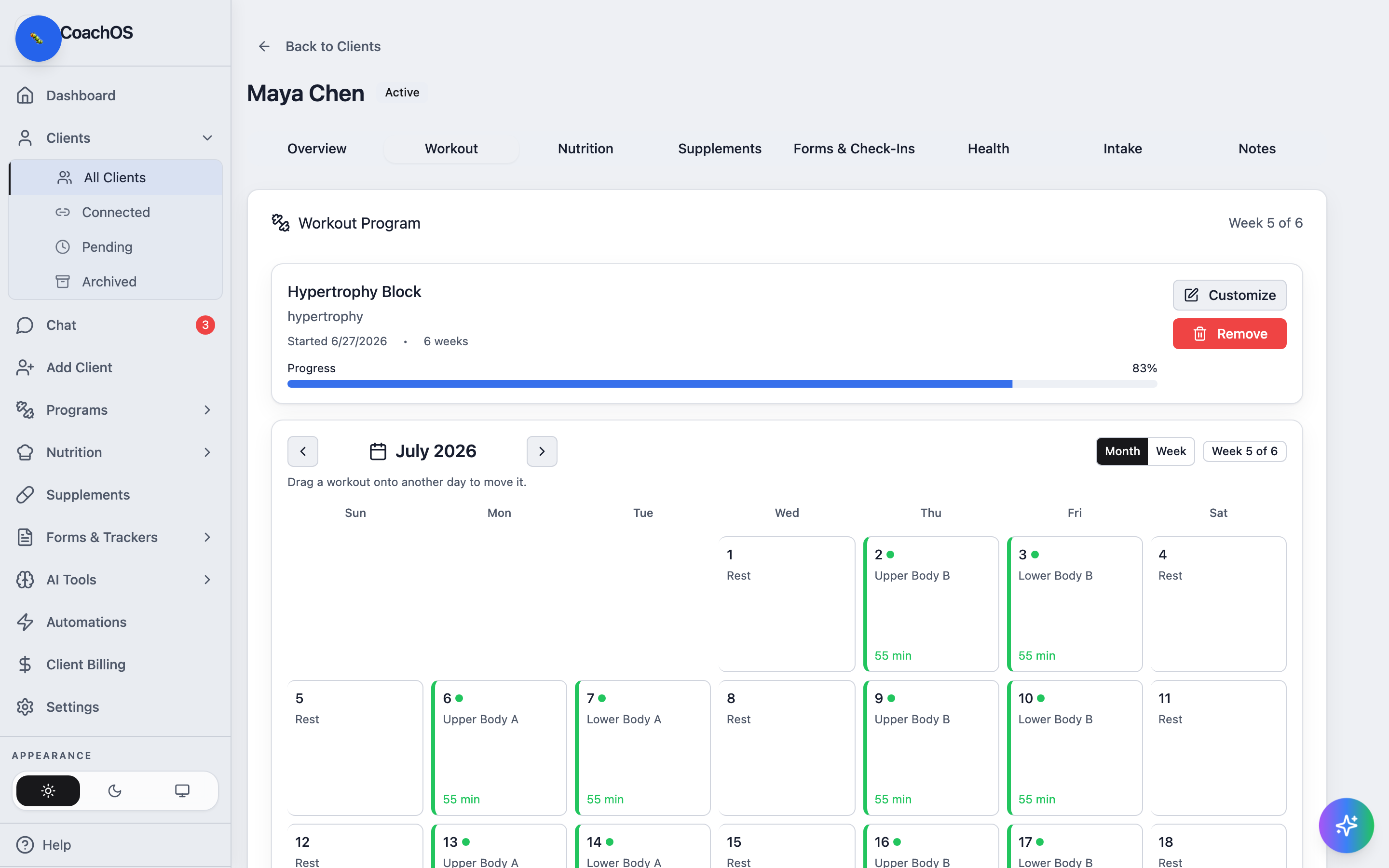
The Workout tab shows the assigned program with its progress bar and a monthly calendar — completed sessions are marked with a green dot. Drag a workout onto another day to move it, switch between Month and Week views, or use Customize to edit the client's copy of the program.
4. Keep notes
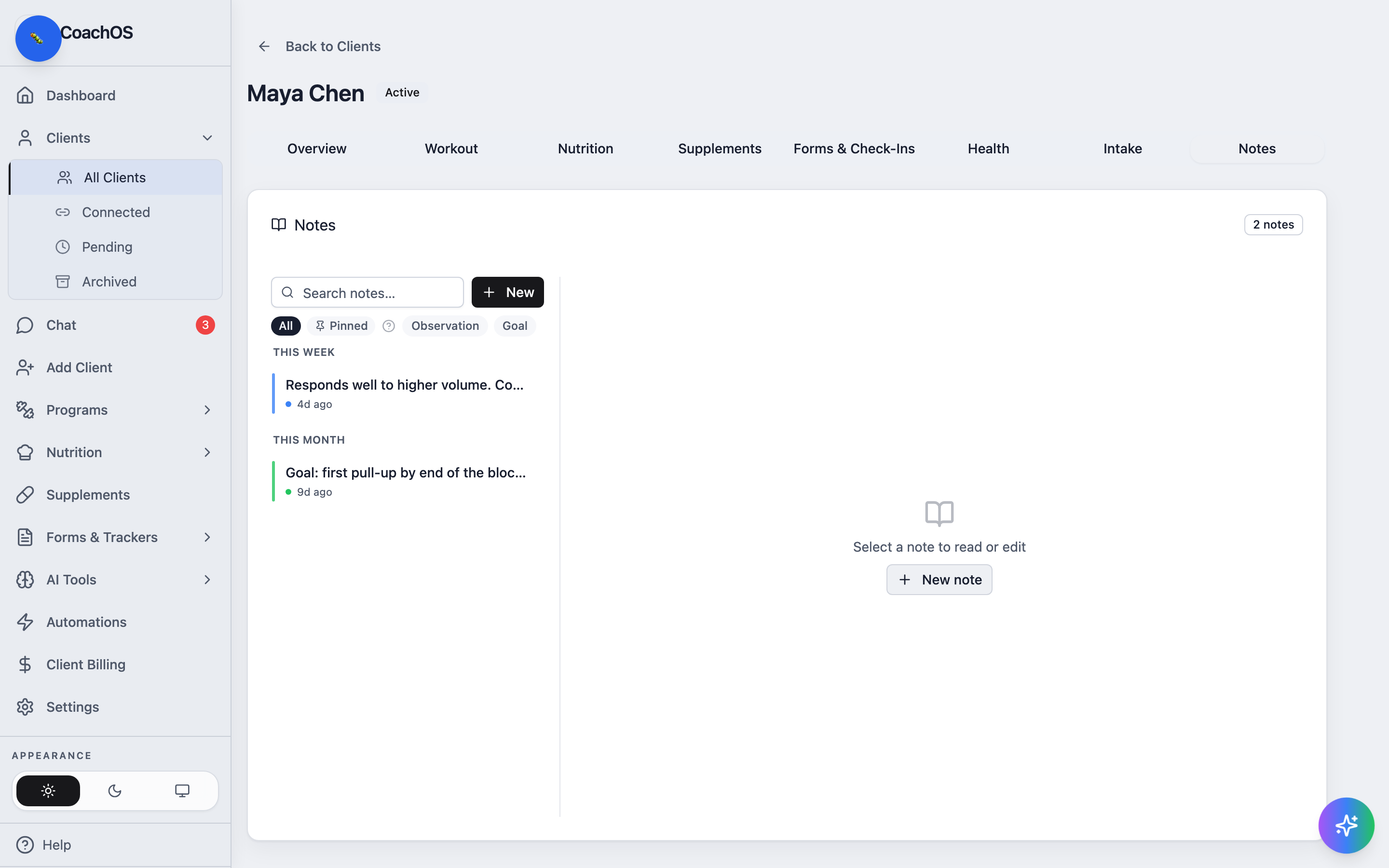
The Notes tab holds your private coaching notes — clients never see them. Click New to add one, tag it by type (observation, goal, concern), and pin the important ones so they stay on top.