Nutrition plans are reusable templates: build the meals and targets once, assign to any client, and adjust per client afterwards.
1. Open your meal plans
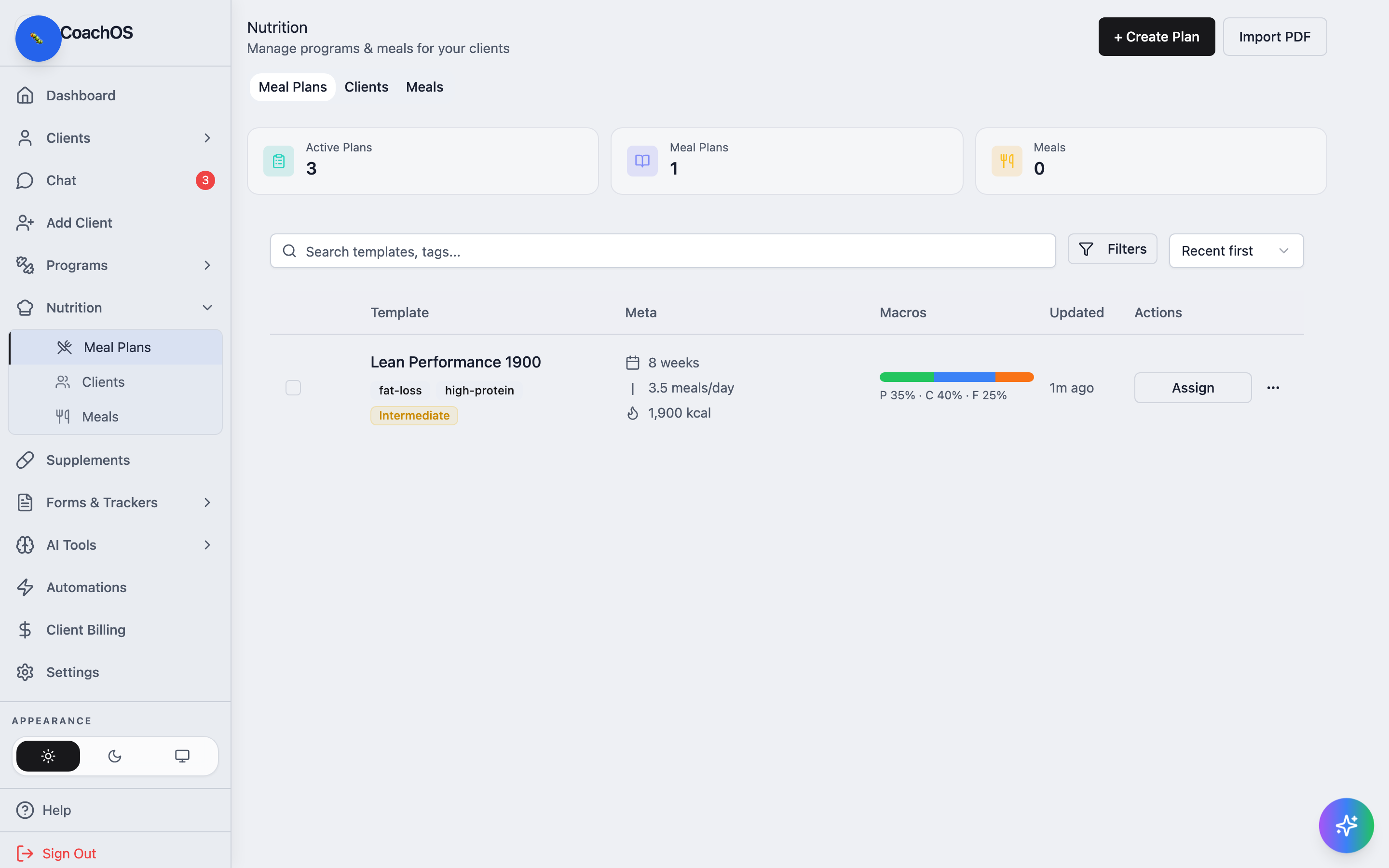
In the sidebar, click Nutrition → Meal Plans. Existing templates are listed with their duration, meals per day, calories, and macro split — each row has an Assign action. You can also bring in an existing plan with Import PDF.
2. Create the template
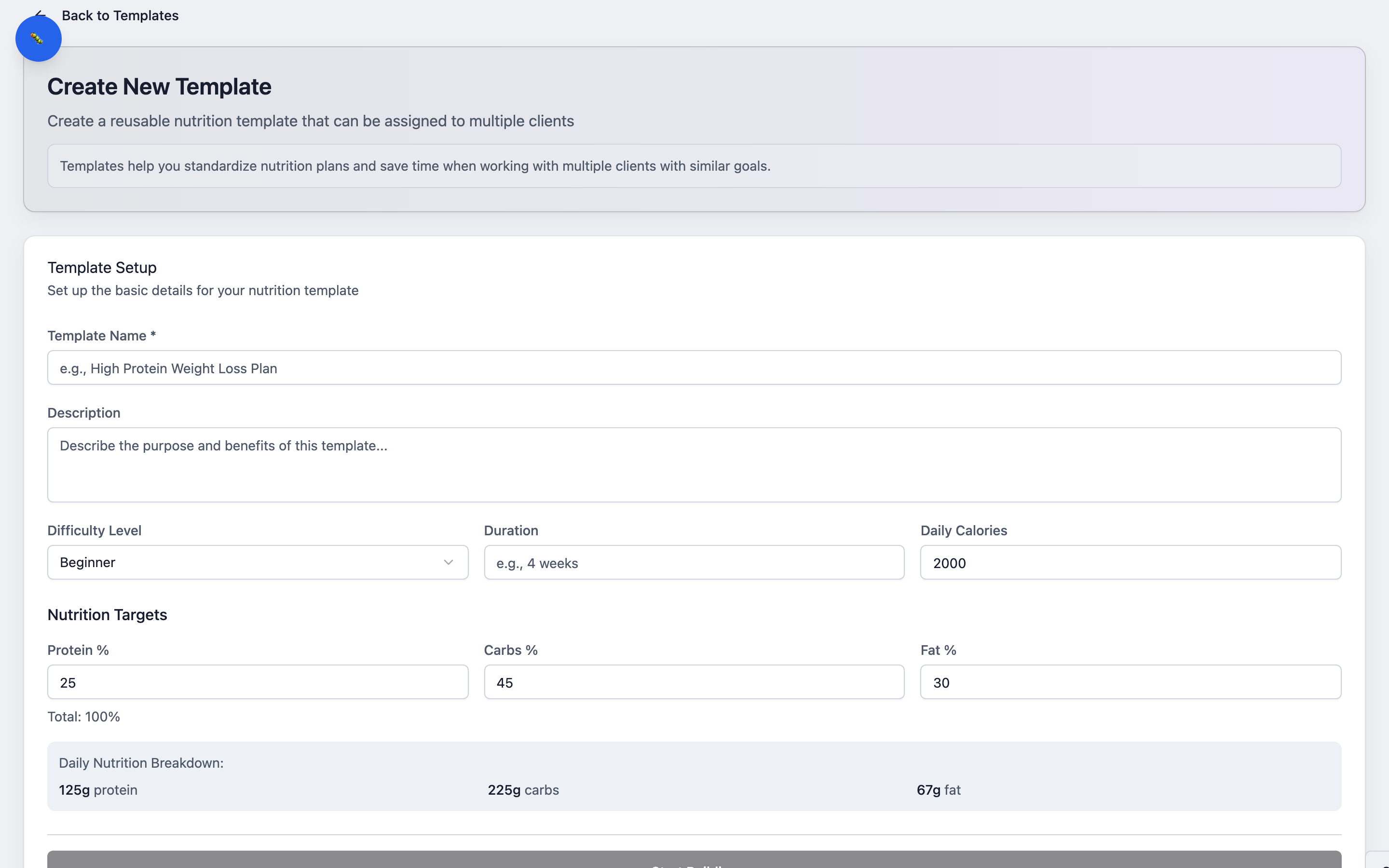
Click + Create Plan. Under Template Setup, give it a Template Name, an optional Description, a Difficulty Level, a Duration, and Daily Calories.
3. Set the targets
Under Nutrition Targets, set Protein %, Carbs %, and Fat % — they must total 100%, and the Daily Nutrition Breakdown shows the resulting grams live. Then continue to build out the day types and meals, and save the template.
4. Assign it
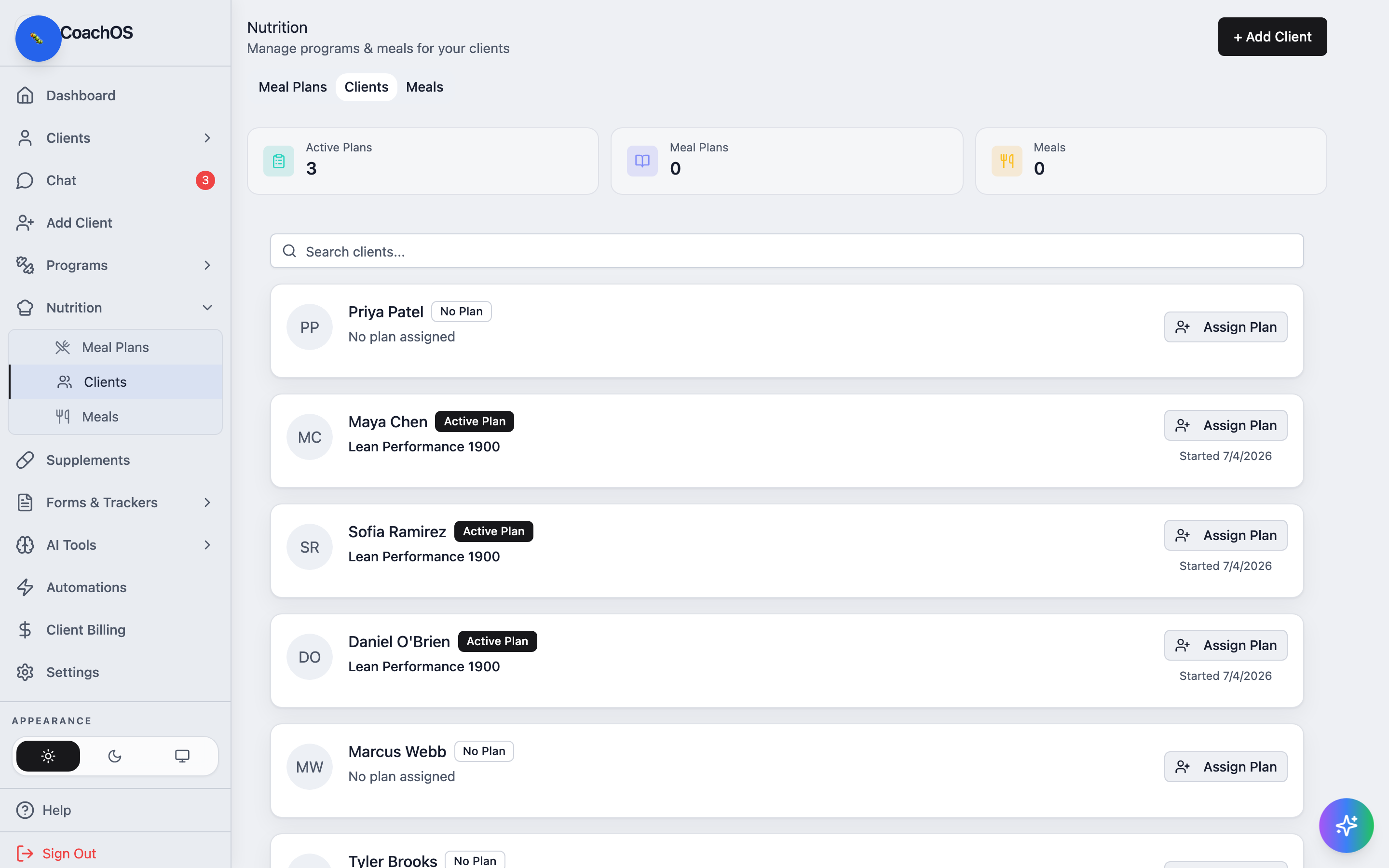
The Clients tab lists every client with their nutrition status — Active Plan with the plan name and start date, or No Plan. Click Assign Plan next to a client to put a template on their plan from a start date you choose.